Profile Settings
Update your personal settings, password, phone number for WhatsApp integration, and notification preferences.
Your profile page controls personal account behavior across Scribewave. Here you can change your password, associate a phone number for WhatsApp uploads, and update your email notification settings.
Open profile settings
Navigate to your profile page from the app navigation.
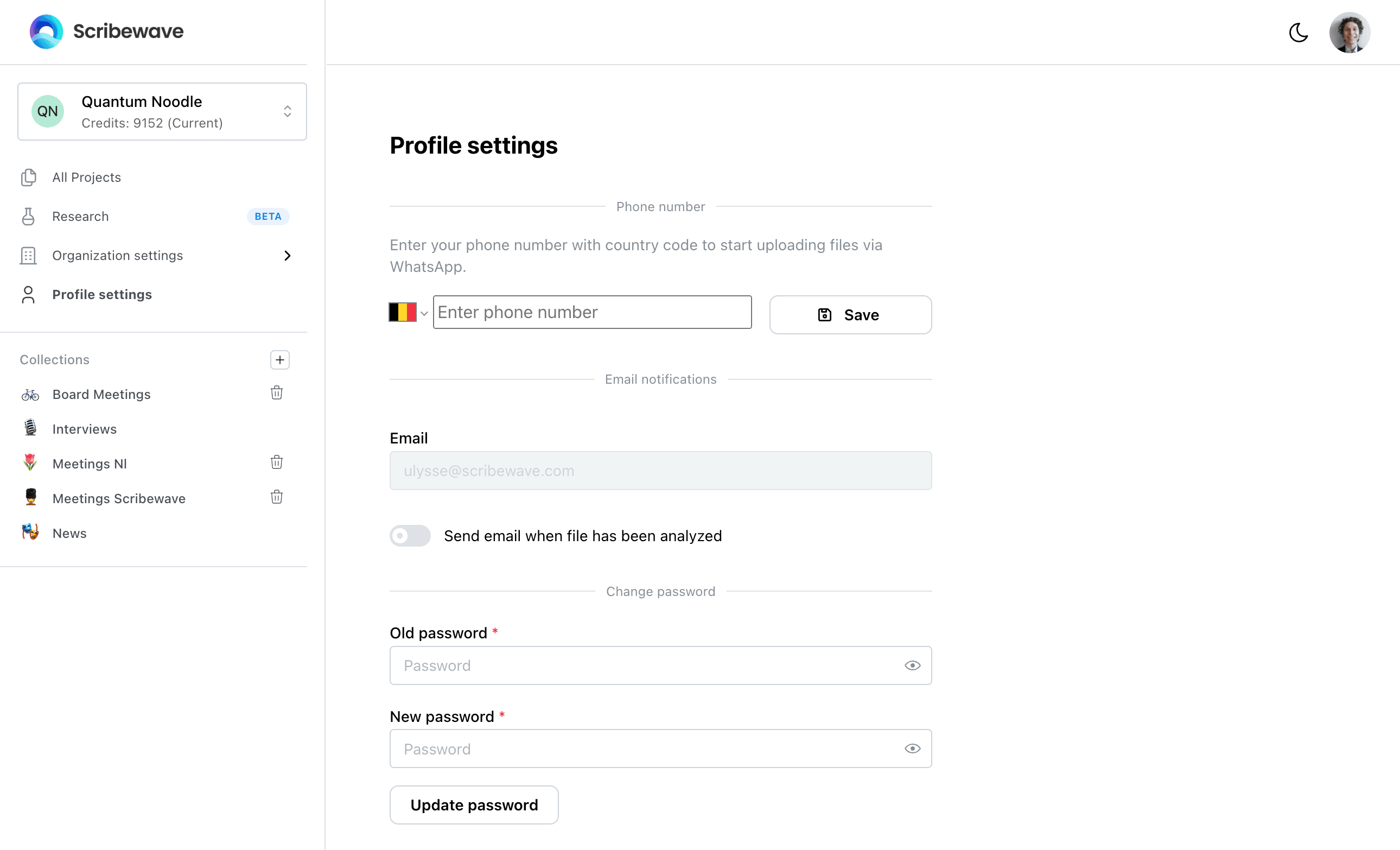
Add a phone number for WhatsApp uploads
By adding your phone number, you can upload files directly via WhatsApp.
- Select your country code and enter your phone number.
- Click Save.
- The Scribewave bot will reach out to you on WhatsApp.
- Accept the message request.
Once connected, you can start sending voice notes, videos, and audio files via WhatsApp. These will be transcribed and automatically appear in your Scribewave dashboard.
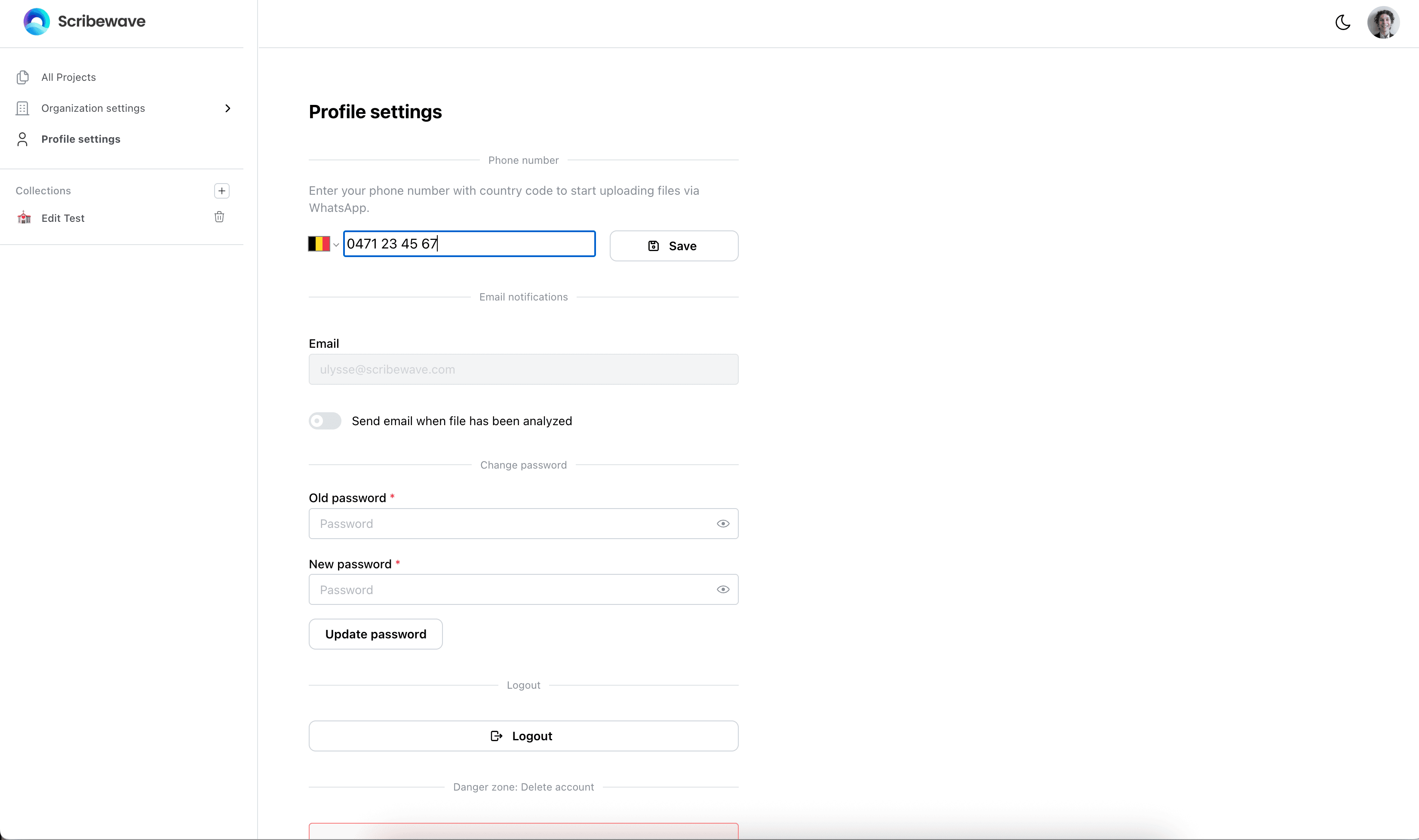
Update email notifications
By default, Scribewave sends you an email when a file has been successfully analyzed and transcribed. This is helpful since transcription can take a couple of minutes, allowing you to do other things while waiting.
If you prefer not to receive these emails:
- Go to your Profile Settings.
- Disable the Send Email When File Has Been Analyzed option.
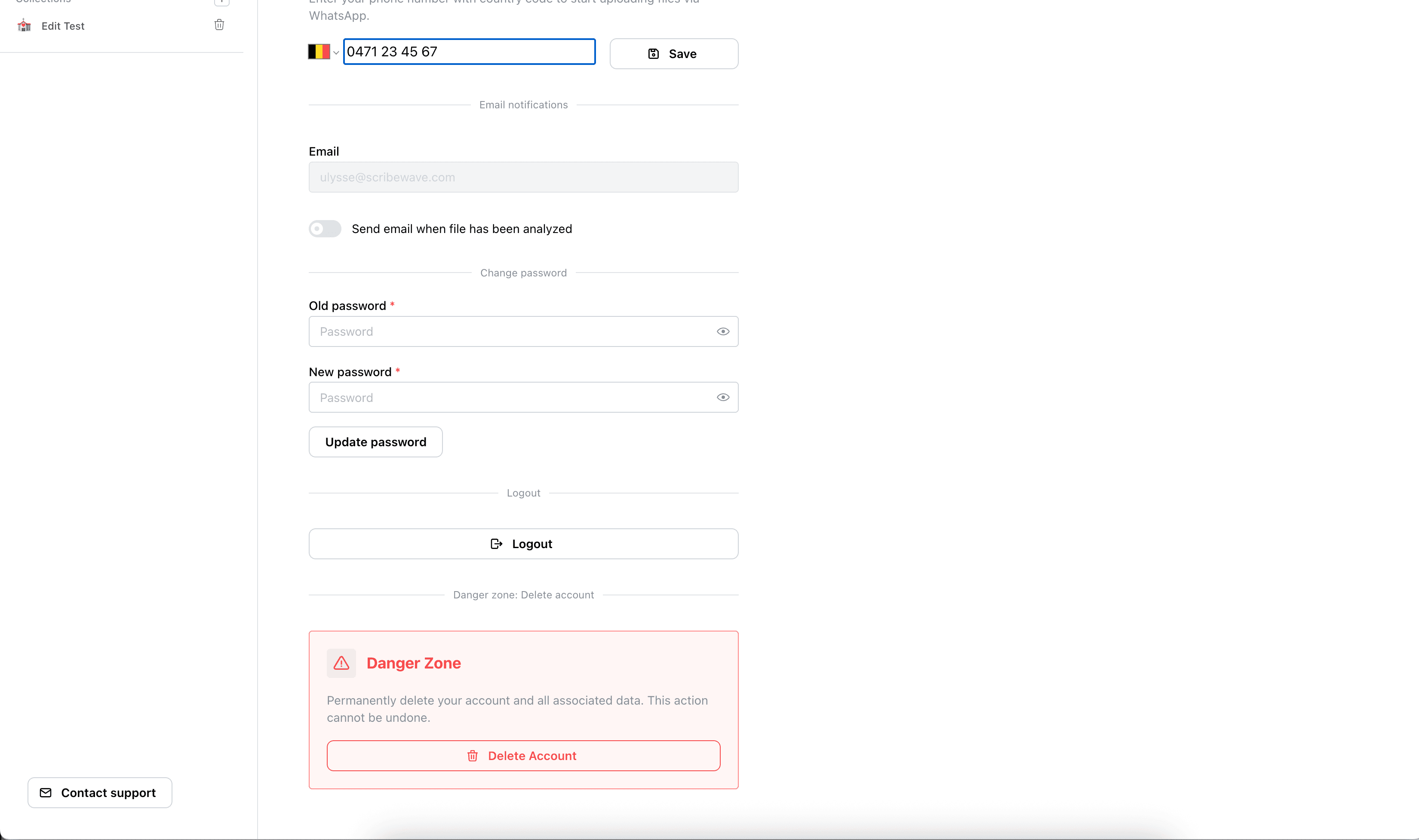
Update your password
You can update your password directly from the Profile Settings page.
If you originally signed up or logged in using Google or Microsoft, you won't have an existing password. To set one up:
- Leave the Old Password field blank.
- Type your new password.
- Click Update Password.
Log out or delete your account
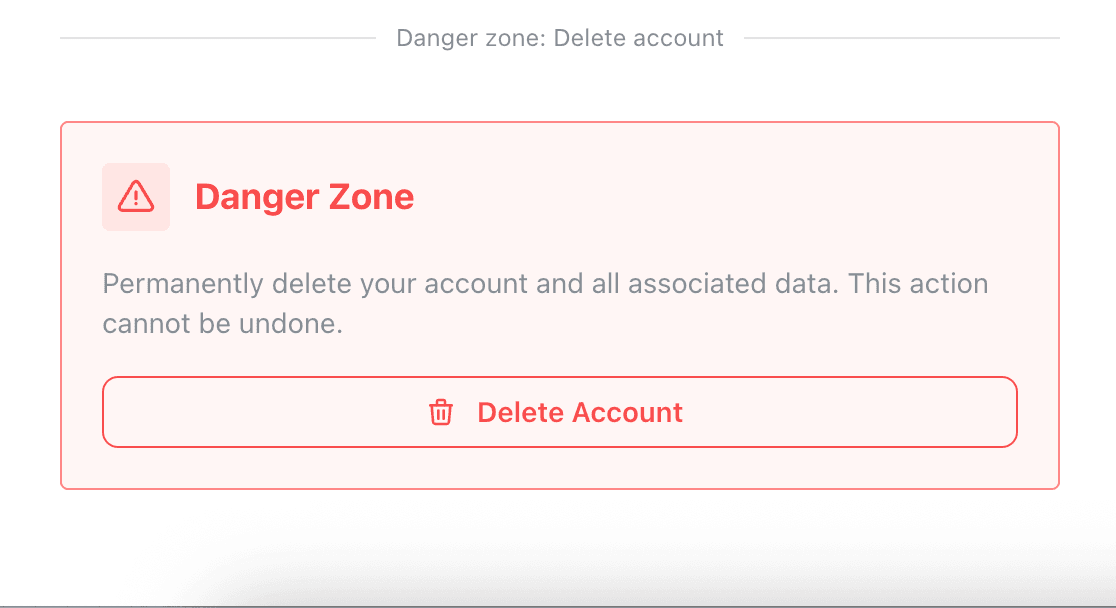
At the bottom of the profile page, you have options to sign out or manage your account status.
- Log out: Securely sign out of your Scribewave account.
- Delete account: You can permanently delete your account here. Be very careful with this action, as deleting your account will permanently remove all of your projects and data.