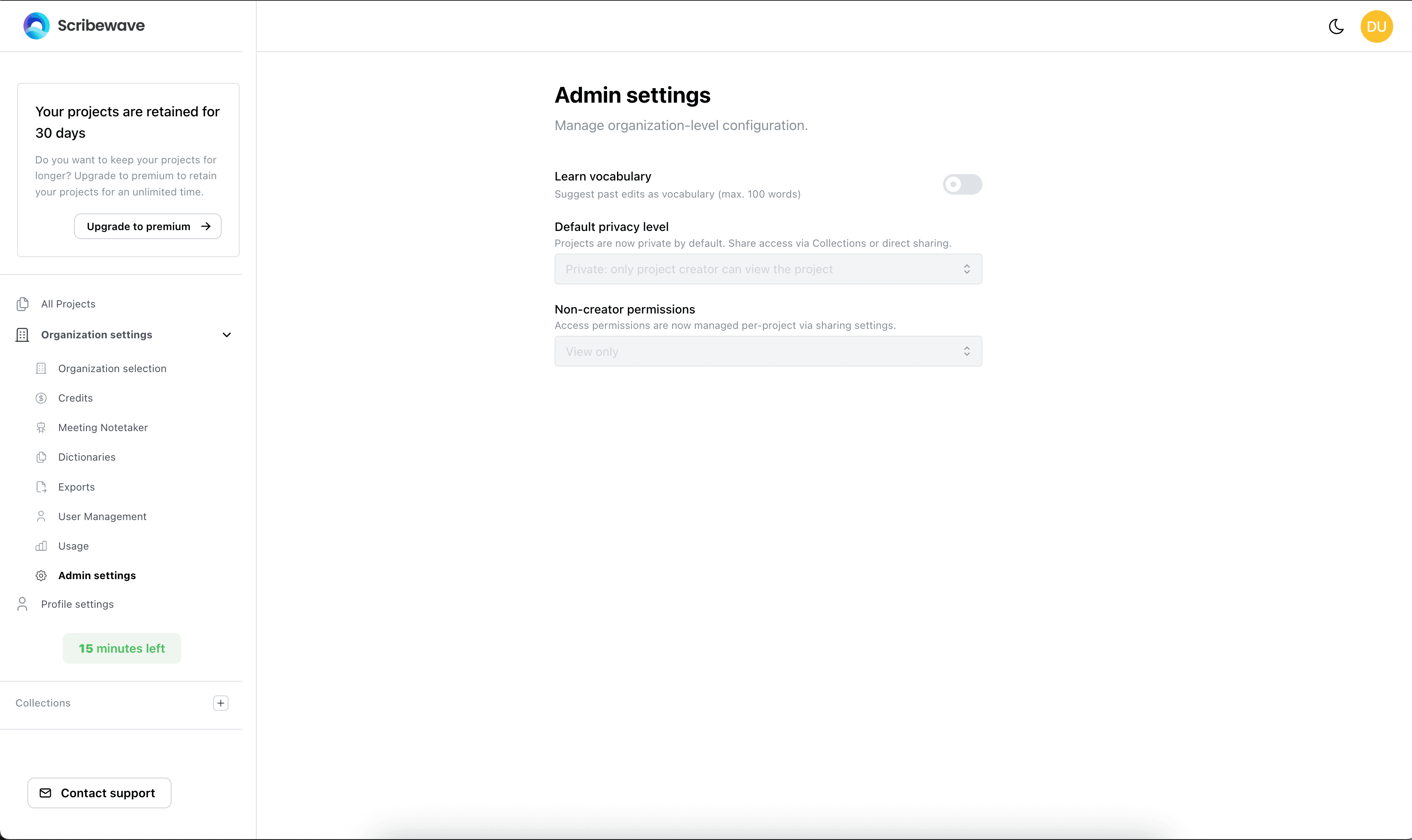
Organization Settings
Manage team access, usage, credits, dictionaries, and admin operations for your organization.
The organization settings in Scribewave are subdivided into different sections that allow you to manage your workspace efficiently.
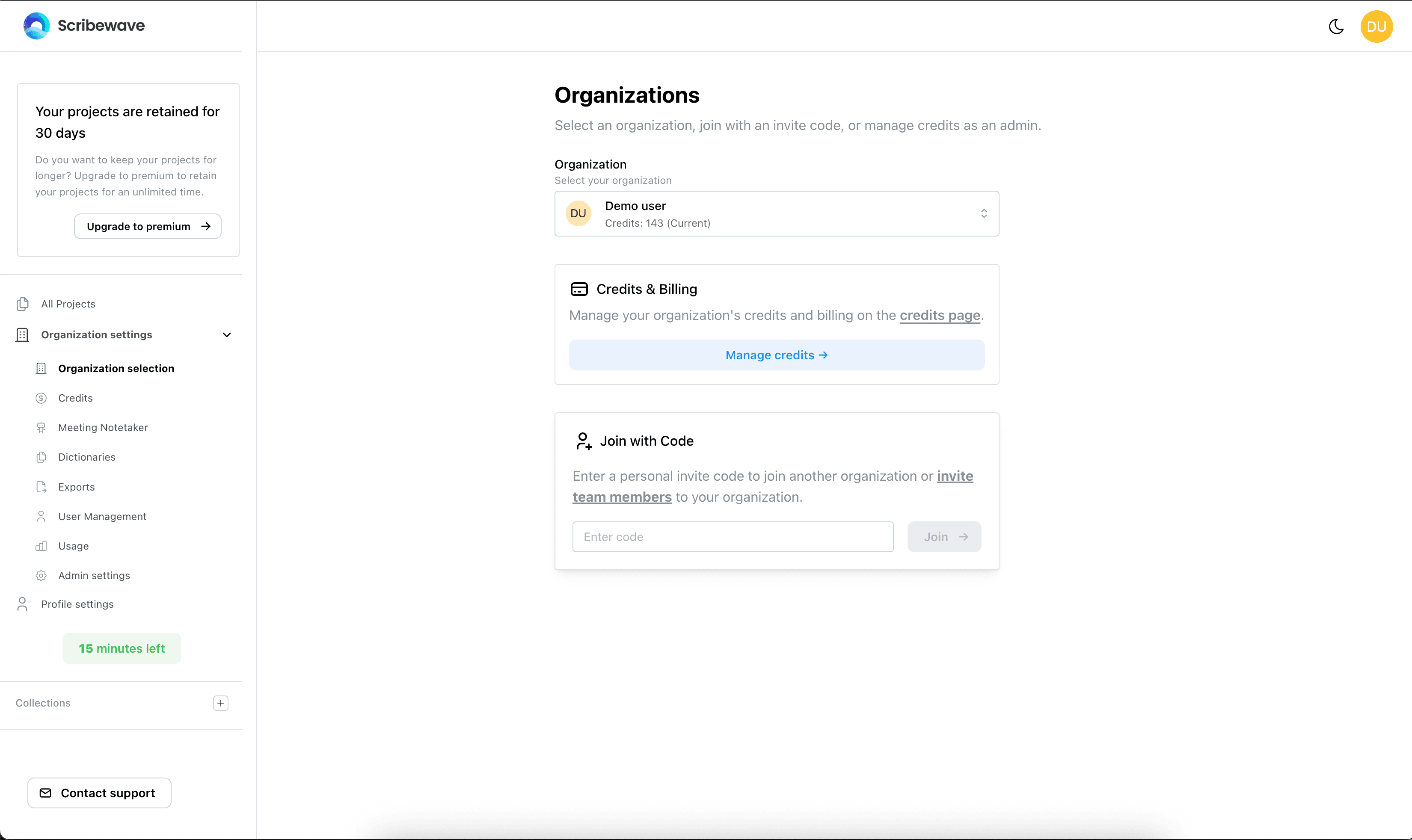
Organization Selection
The Organization Selection page is the default view when you click on organization settings. Here you can:
- Switch between different organizations you are a part of.
- Join another organization if you have an invite code.
- Click the Invite Team Members link to navigate to the user management page.
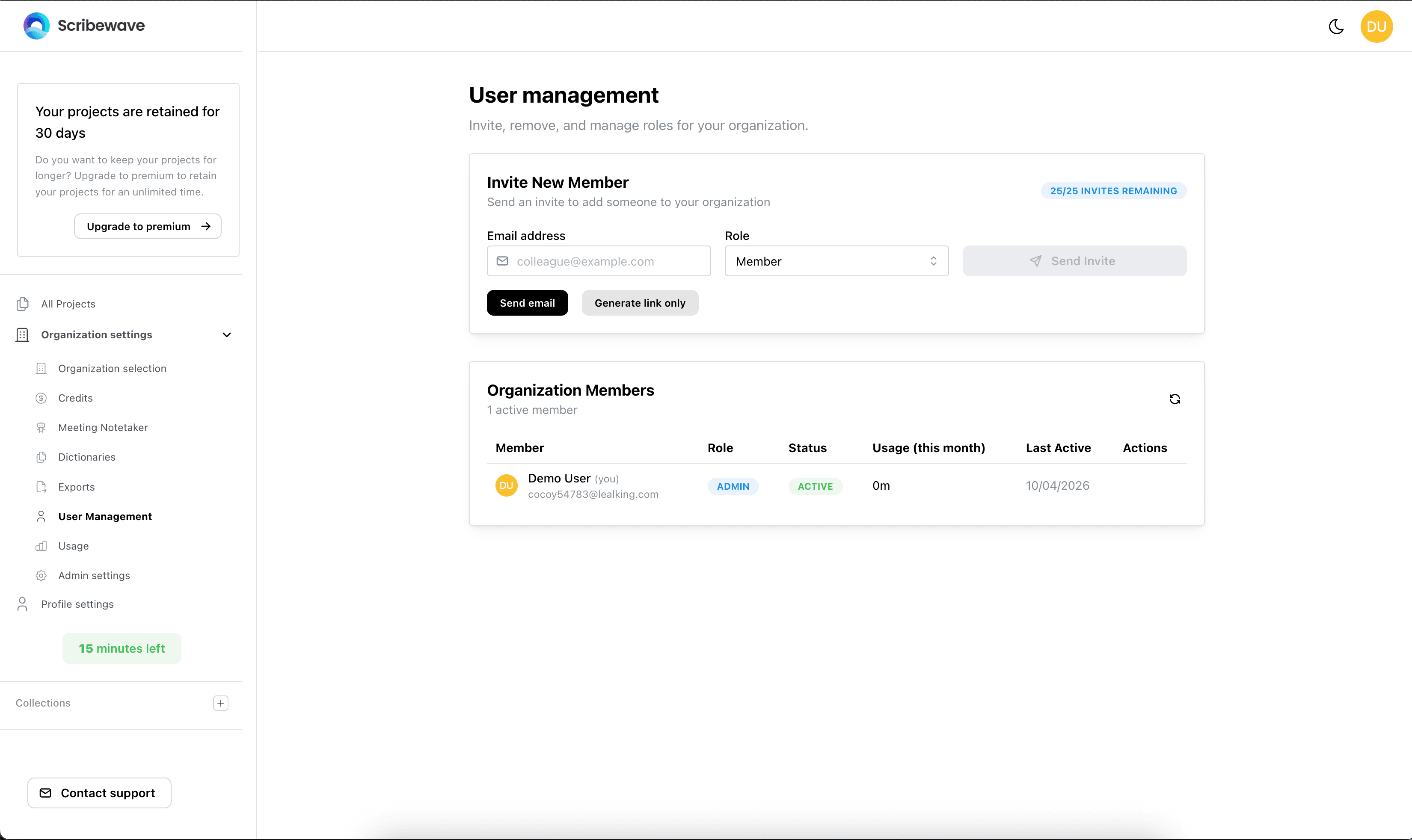
User Management
The User Management page allows you to control who is a member of your organization.
- Add Members: Invite people to your organization, or — on enterprise plans — add them directly. An invited person becomes a member only once they accept the invite.
- Define Roles: Set each member to Member or Admin. Admins manage members, credits and settings.
- Remove Members: If you are an admin, you can remove members from the space.
Note: Adding someone to your organization does not give them access to your transcripts, and neither does making them an admin. Transcripts are shared per project or per collection. See Sharing and Access.
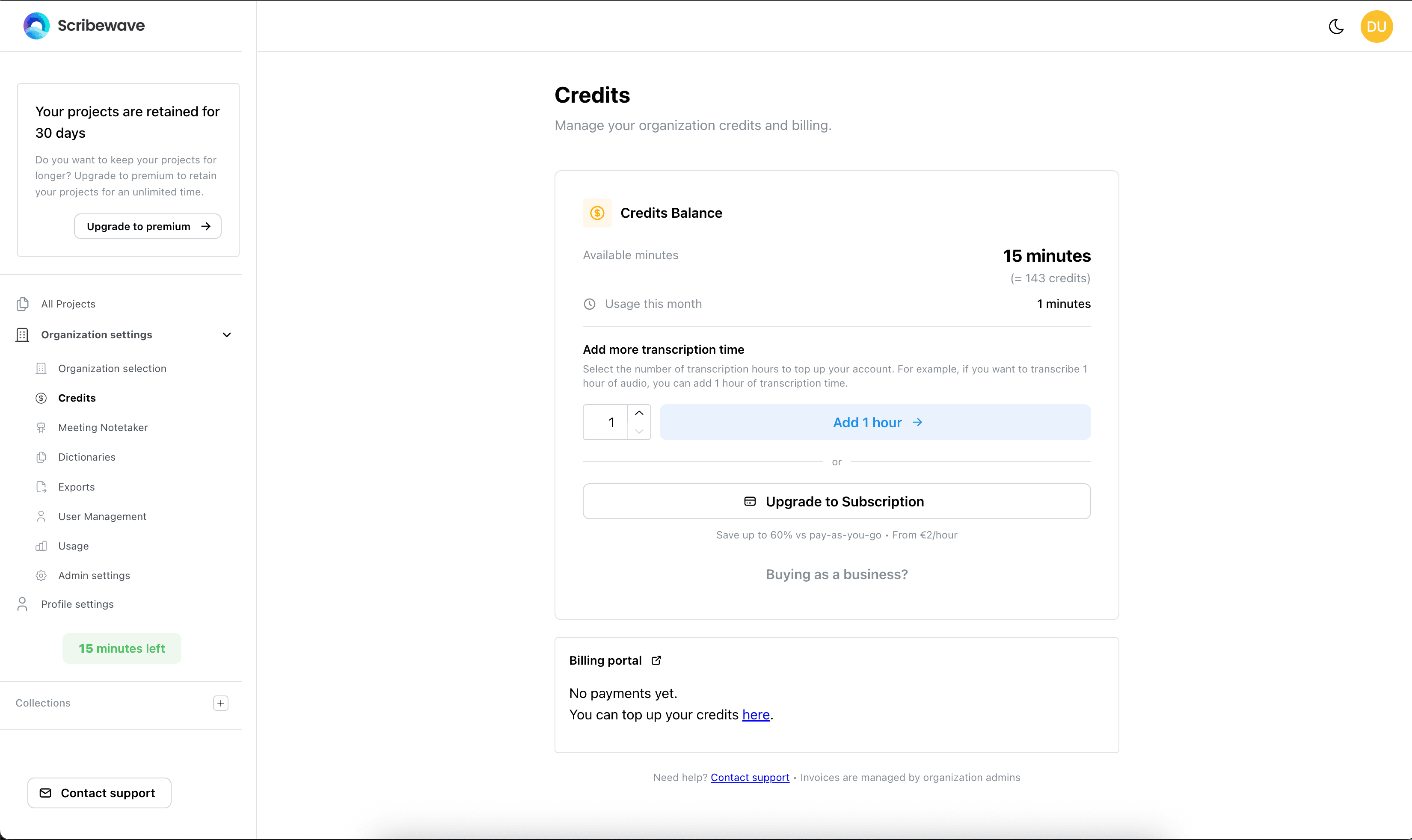
Credits and Subscriptions
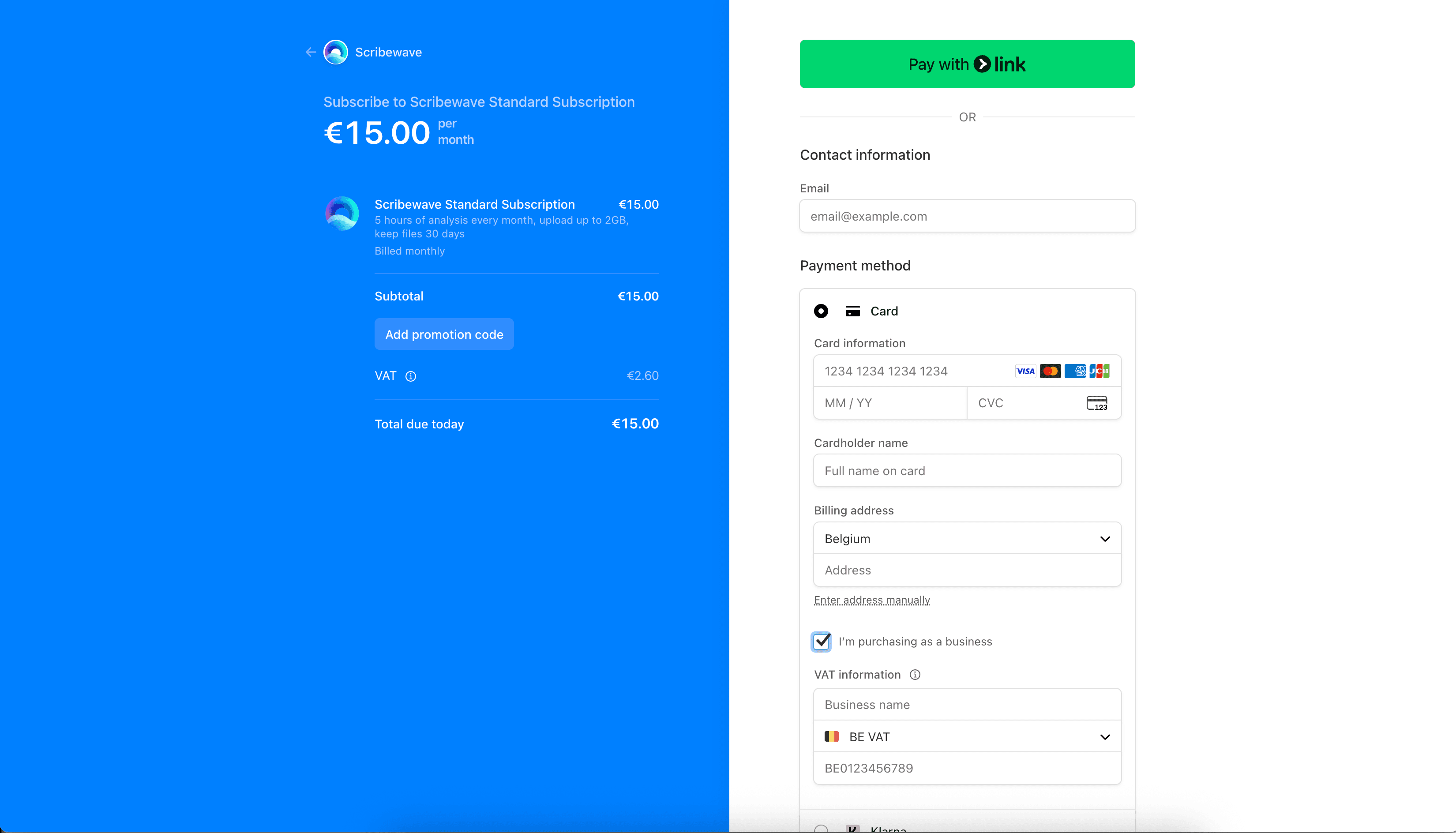
The Credits section is where you manage your organization's transcription allowance. We partner with Stripe to handle the checkout process. We support all major payment methods, including credit card, Paypal, Link, Bancontact and iDeal.
- Top Up Credits: Purchase additional credits to continue transcribing files.
- Subscriptions: Upgrade to a subscription plan to access transcription at a discounted price. When you have an active subscription, you can use the "Manage subscription" button to upgrade or cancel your plan. For this, you will be redirected to the Stripe portal.
Note: For all payments, a receipt is generated and sent to your checkout email address. Do you require a VAT invoice? Then don't forget to indicate "I'm purchasing as a business" in Stripe and to fill in your business details to be sent a valid VAT invoice.
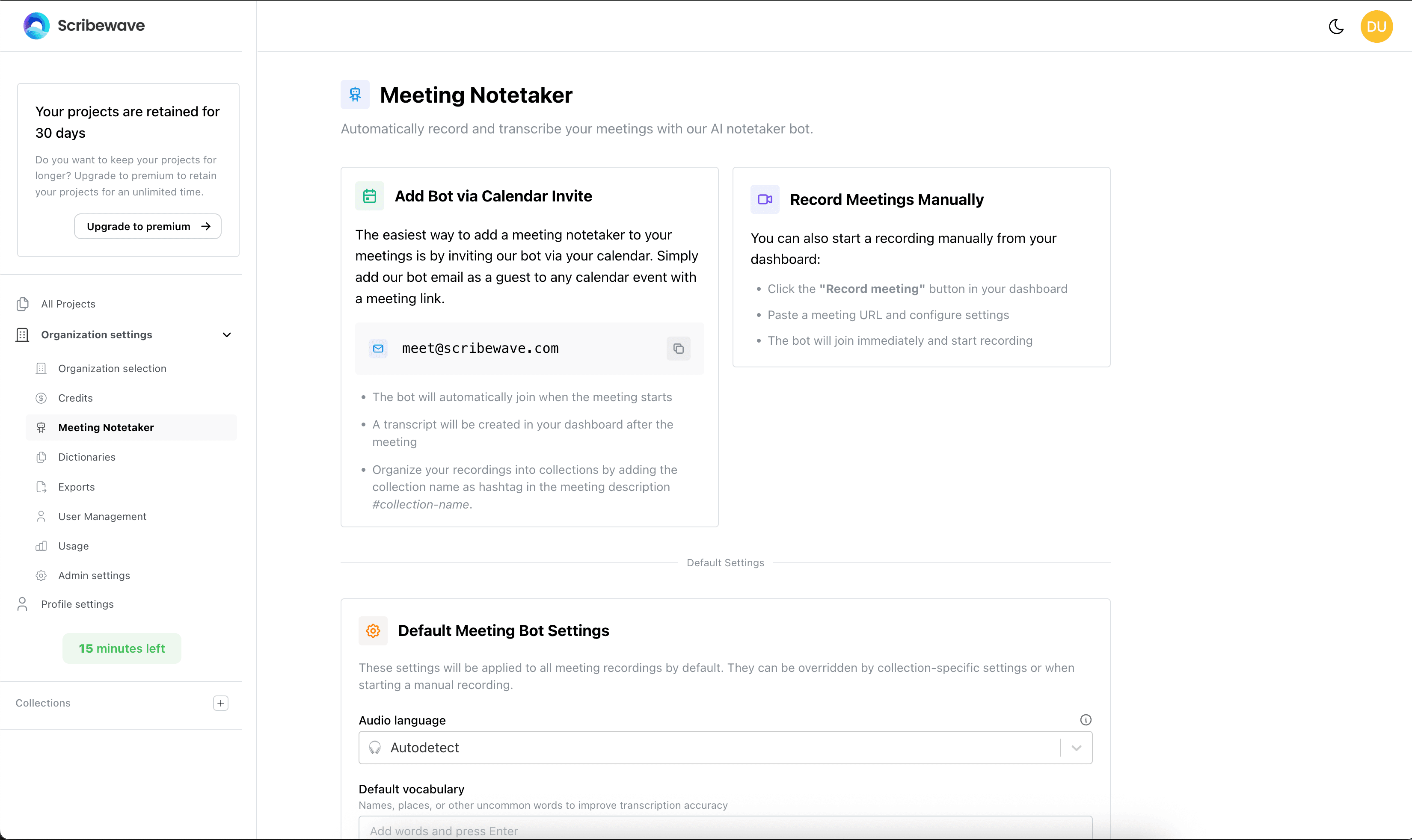
Meeting Notetaker Settings
Here you can specify how your meeting bot will behave when it is added to a meeting via your calendar integration. Customize its automated actions to suit your team's workflow.
Dictionaries
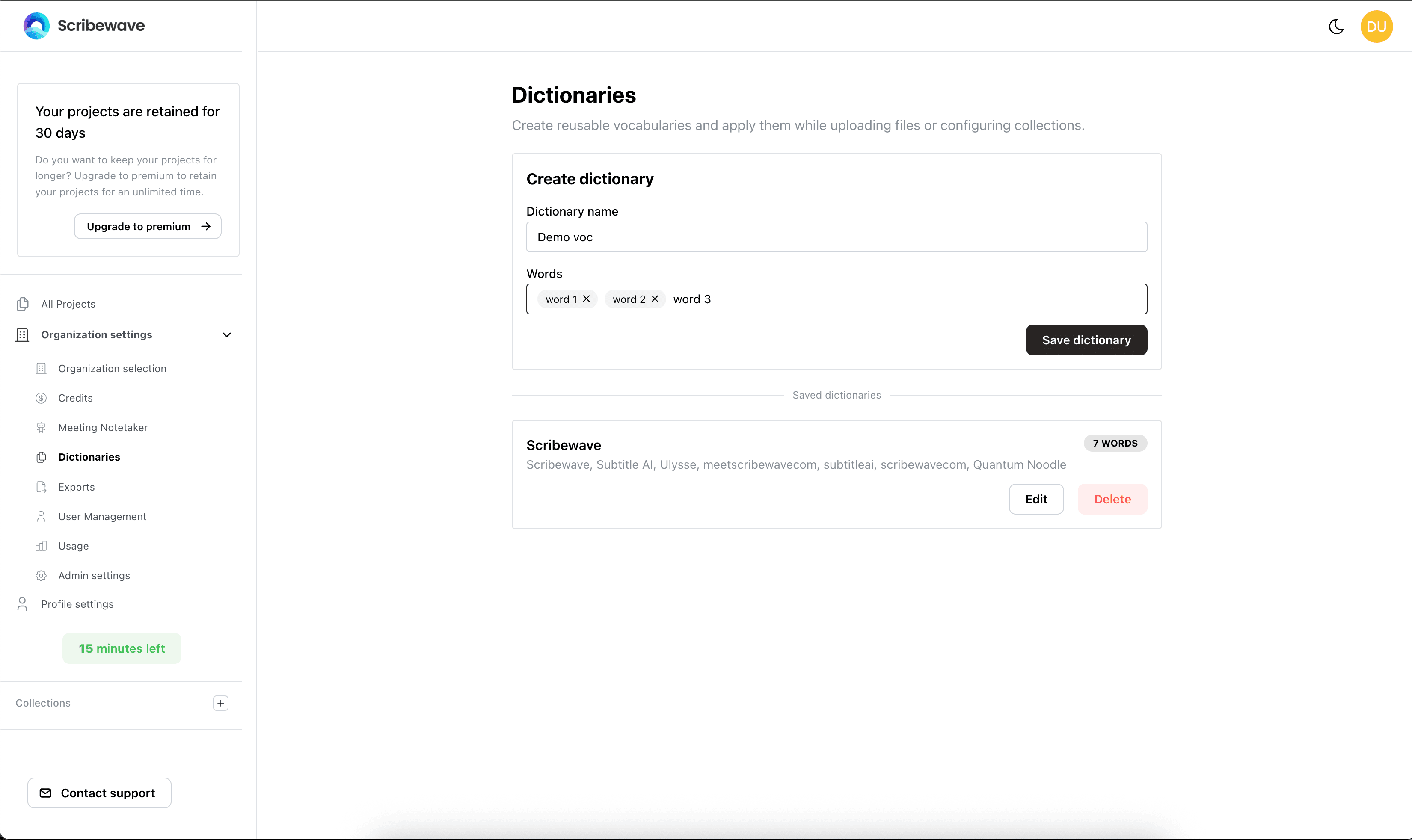
The Dictionaries page helps improve transcription accuracy for specialized terminology.
- Define custom sets of keywords that you can reuse when uploading certain files.
- Collection Dictionaries: You can specify dictionaries in collection settings so that every time you upload a file into that collection, the specific dictionary is applied as vocabulary.
Exports
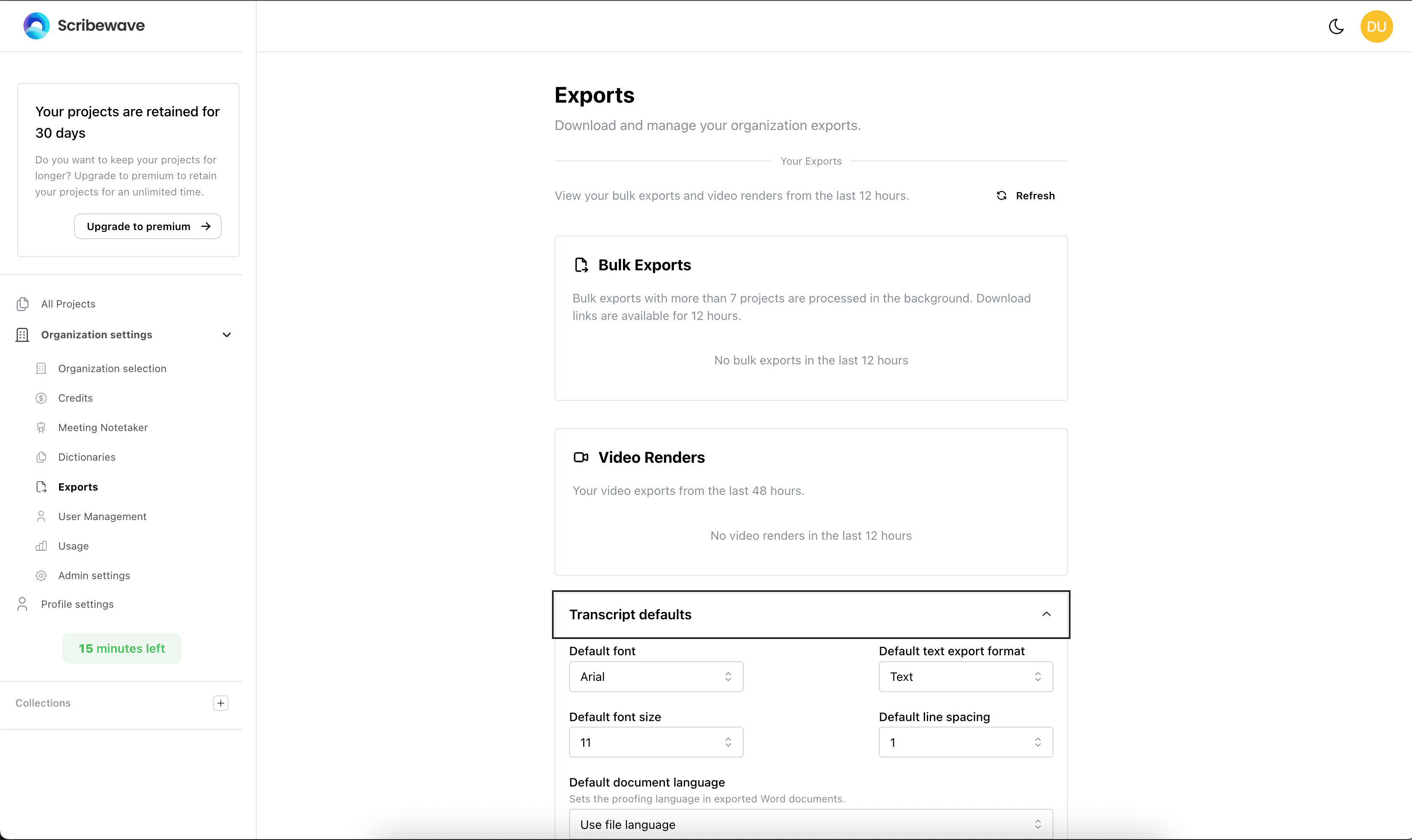
The Exports page manages your exported files and default formats.
- View and download previously exported video files.
- Set global defaults for different types of transcript exports, including:
- Document defaults
- Subtitle defaults
- Editing app defaults
Usage Tracking
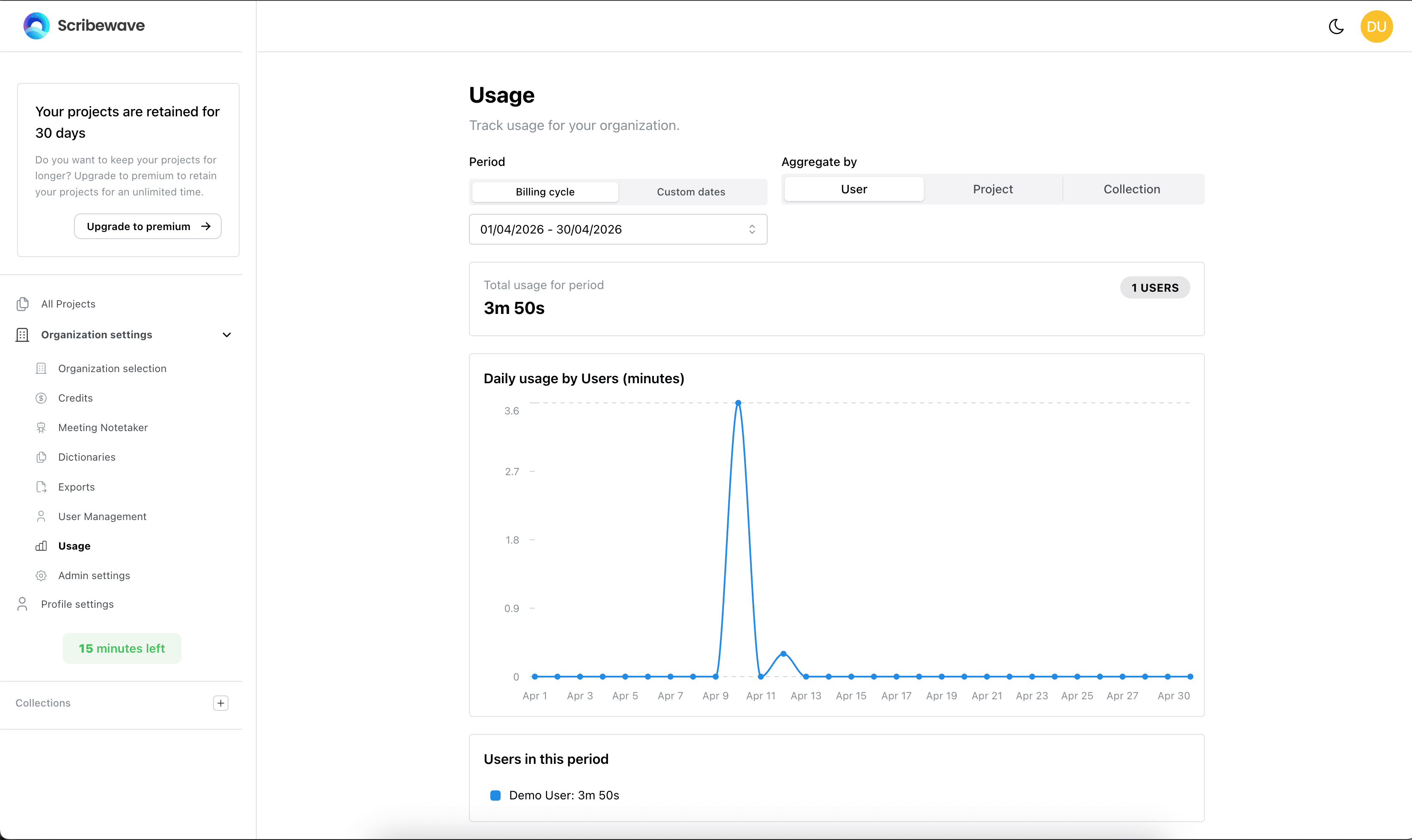
In the Usage tab, you can track how many credits and resources your organization is consuming.
- Admins can view the usage of individual users within the organization.
- Split and analyze usage data by project or by collection.
- Choose different time periods to aggregate the usage data.
Admin Settings
The Admin Settings contain organization-wide configurations.
- Learn Vocabulary: A notable feature that, when enabled, automatically updates your organization's custom vocabulary based on the manual edits people make in projects.
- Admin access to all projects: Decides whether admins can reach projects that were not shared with them. It is off by default — see Giving admins access to everything.