

Sharing and Access
How membership, roles, and sharing decide who can open a transcript.
Scribewave keeps every transcript private to the person who uploaded it. Adding a colleague to your organization does not give them your transcripts, and neither does making them an admin. Access is granted per project, or — the way most teams work — per collection.
Three rules cover almost everything:
- The organization is the container, not the permission. It holds your credits, your subscription, your settings and your member list. Being in it gives nobody access to anybody's files.
- Admin is about people and billing, not about transcripts. An admin manages members, invites, credits and settings. By default an admin sees exactly as many transcripts as a member does: their own.
- Sharing happens on collections and projects. Put files in a collection, share the collection with the colleagues who need it, and everything in that collection — now and in the future — is available to them.
Organizations and membership
An organization is a shared workspace with its own credits, subscription, settings and members. Every project belongs to exactly one organization.
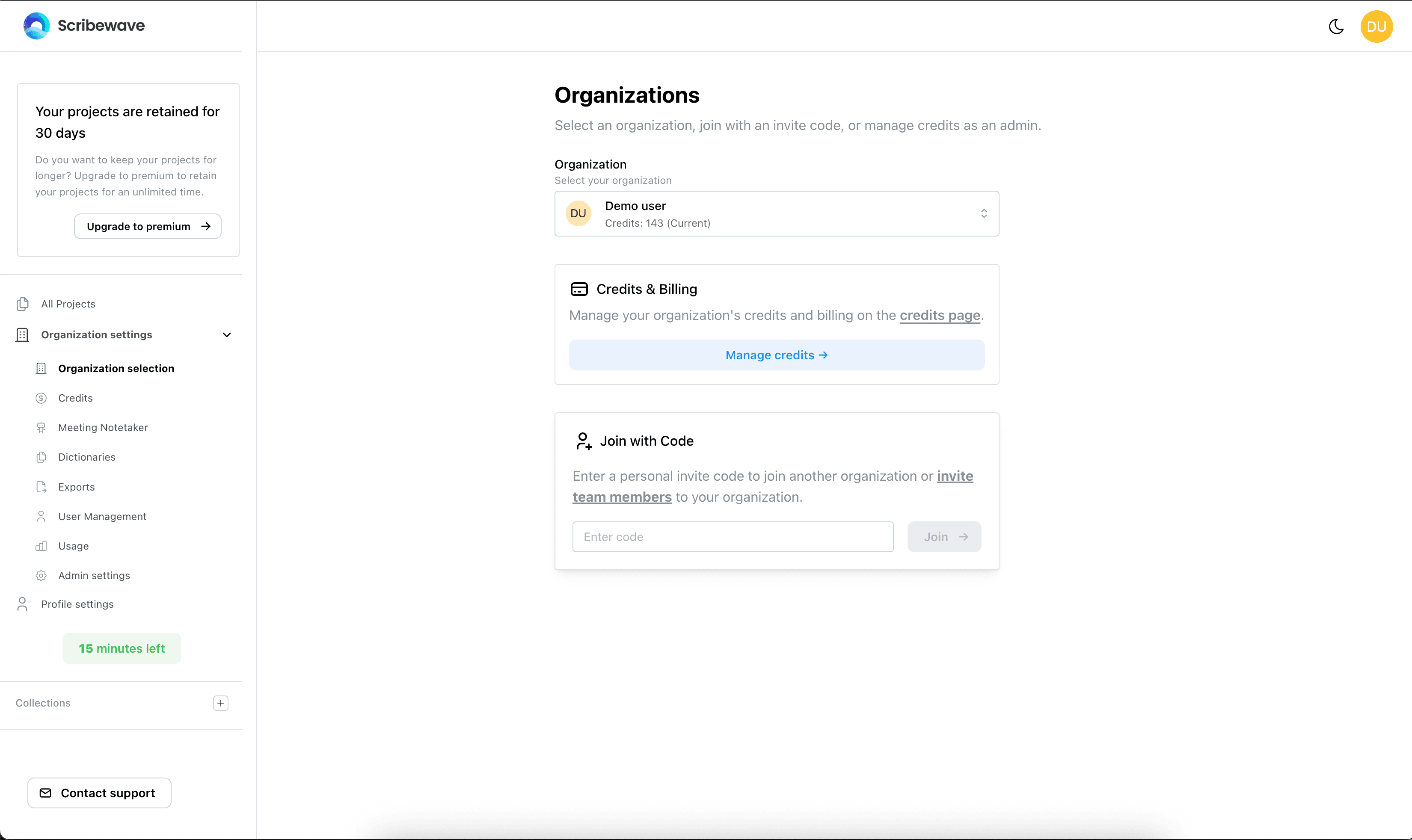
One account can belong to several organizations. In that case you switch between them in the organization selector (Organization settings → Organization selection). You are always working inside exactly one organization at a time, and you only ever see the projects, collections, credits and members of that one.
Adding people to your organization
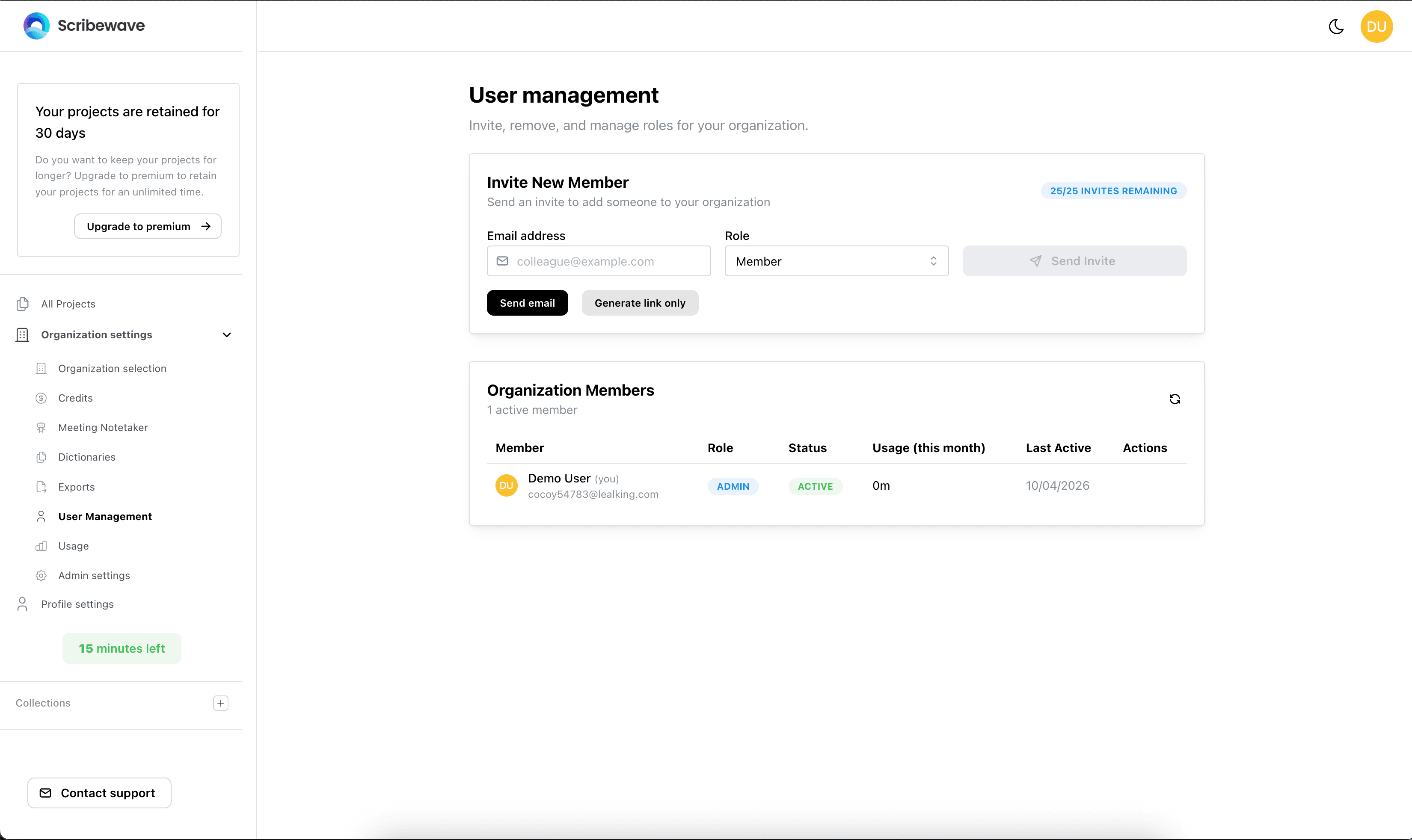
Go to Organization settings → User management. There are two ways to add someone:
- Send an invite. The person receives a link (or you copy the link yourself and send it). They become a member only after they open that link and accept. Until then they appear under Pending invites, not under Organization members — and they cannot be picked in any sharing menu, because they are not a member yet. Invites expire after 3 days and must be accepted from the same email address they were sent to.
- Add directly (enterprise plans only). The account and the membership are created immediately, and the person is emailed a link to choose their own password. Because they are a member from that moment, you can add them to collections straight away.
The most common mix-up. Someone who already had a Scribewave account also has their own personal organization. After you add them, their account belongs to two organizations, and they may still be looking at their own — which is empty. Ask them to open the organization selector and switch to your organization. If they never accepted the invite, they are not a member at all yet, and switching will not offer your organization.
Roles: member and admin
Every member has one role.
| Member | Admin | |
|---|---|---|
| Upload, edit and share their own projects | Yes | Yes |
| Use the organization's credits | Yes | Yes |
| Invite, add and remove members, change roles | No | Yes |
| Buy credits, manage the subscription, see usage per user | No | Yes |
| Change organization settings and dictionaries | No | Yes |
| See other people's transcripts | No | No, unless you turn it on — see below |
Admin is a management role. Promoting someone to admin gives them the member list, the billing and the settings; it does not add a single transcript to their dashboard.
Who can open a transcript
When someone opens a project, Scribewave checks these in order and stops at the first match:
- They uploaded it. The uploader always has full edit access.
- The project is shared with them. Either as View or as Edit.
- The collection the project sits in is shared with them. Again as View or Edit. This is what covers whole folders at once.
- They are an admin and the organization allows admins access to everything. Off by default; see Giving admins access to everything.
If none of these matches, the project is not visible to them at all — it does not appear in their dashboard, their collections, or their search results.
Everything you upload starts at step 1 only: private to you.
Sharing a collection
This is the tool most teams want. Share the collection once, and everyone on it can reach every project in it.
- Click the collection in the left sidebar to open it.
- At the top of the collection, next to the project count, click Collection settings. Only the person who created the collection sees this button.
- Expand Share collection.
- Under Add people, search for a colleague and select them. They appear in the list underneath.
- Set each person to View or Edit.
- Click Save.
What saving does:
- Every project currently in the collection becomes available to the people you listed.
- Projects added to the collection later are covered automatically — you do not have to share again.
- When someone uploads into a shared collection, the upload dialog already has the collection's people filled in.
Sub-collections
A sub-collection inherits its parent's sharing by default, so the same people reach it. To give a sub-collection its own list, switch off inheritance for sharing in its settings and pick people there instead.
Taking access away
Removing someone from the collection's list, then saving, removes their access to the projects in it.
To take away access to one specific project while leaving the rest of the collection alone, move that project to another collection the person is not on.
Sharing a single project
Open the project in the editor and use Share with organization members in the right-hand sidebar. Pick the people and set each one to View or Edit.
A project shared this way shows up in the other person's project list even though they cannot open the collection it lives in. Anyone with Edit on a project can also change who else it is shared with.
Giving admins access to everything
If you want admins to see the whole organization's work regardless of who uploaded what, turn it on explicitly:
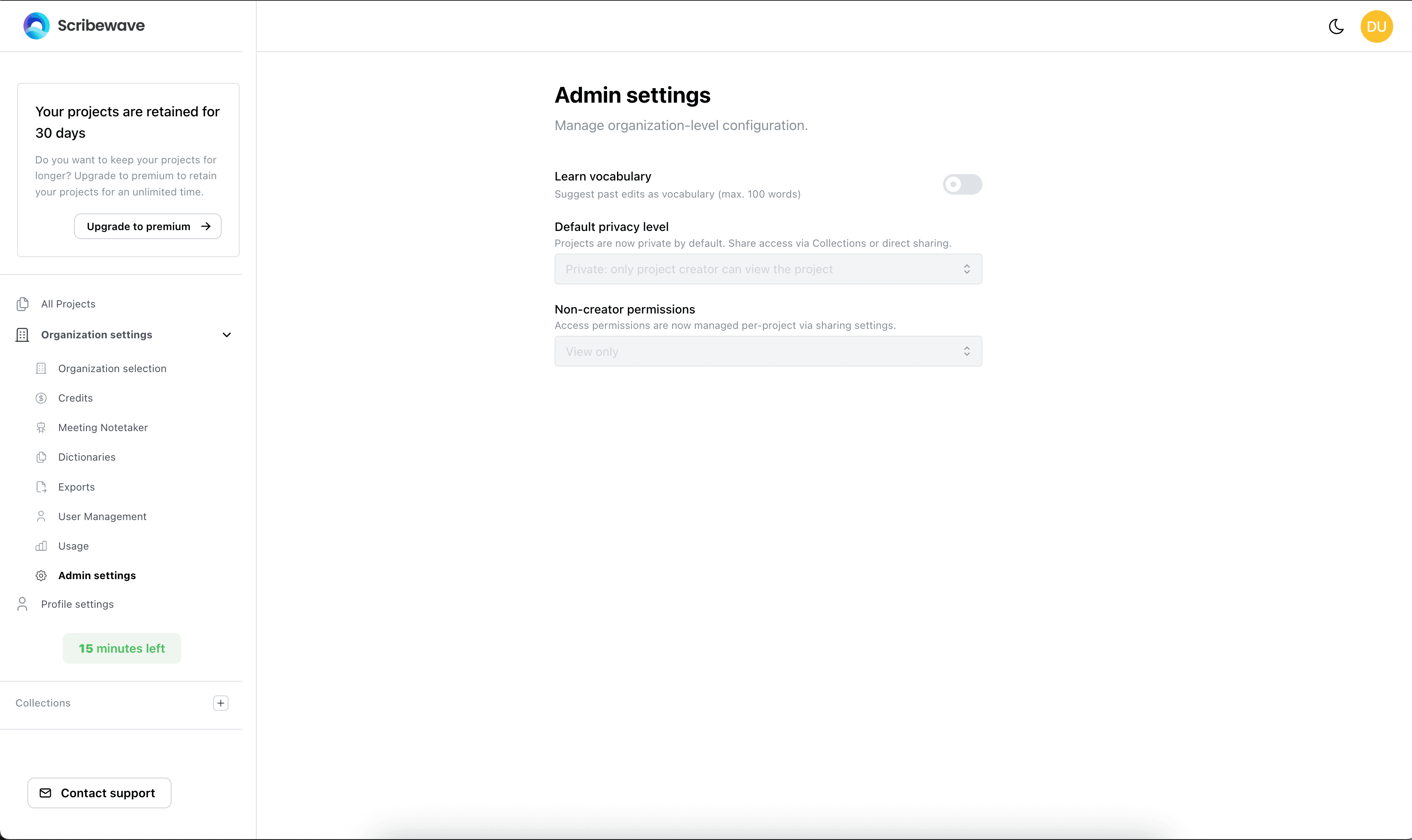
- Go to Organization settings → Admin settings.
- Set Admin access to all projects to one of:
- Only projects explicitly shared with admin — the default. Admins see only what they uploaded or what was shared with them.
- View all organization projects — every admin can open and read every project and collection in this organization.
- View and edit all organization projects — as above, and they can edit and export them too.
- The change takes effect immediately; the other person may need to reload their dashboard.
Three things to know about this setting:
- It applies to admins only. Members are unaffected, no matter what it is set to.
- It applies to one organization. If you run several organizations, set it in each one — and make sure you set it in the organization that actually holds the transcripts.
- It does not let an admin change other people's sharing. Only a collection's creator can edit that collection's list of people.
Why can't I see the sharing menu?
The sharing controls are hidden — not disabled, hidden — in two situations:
- You are on a pay-as-you-go credit plan. Sharing projects and collections is part of the subscription and enterprise plans. On a credit-only plan the Share collection section and the people picker do not appear.
- You are the only member of your organization. There is nobody to share with, so the picker stays hidden. It appears as soon as a second person has actually accepted their invite and become a member. A pending invite is not enough.
The Collection settings button itself is shown only to the person who created the collection. If a colleague made the collection, ask them to add people to it, or create your own collection and move the projects there.
Troubleshooting
"I added a colleague, and they don't see my transcripts." Expected — membership alone never shares anything. Share the relevant collections with them, or turn on Admin access to all projects if they are an admin and you want them to see everything.
"I made them an admin and turned on View and edit all organization projects, and they still see nothing." Check, in this order:
- Are they actually a member? Look at User management. If they are under Pending invites, they never accepted, and nothing else will work until they do.
- Are they looking at the right organization? Ask them to open the organization selector and switch to yours. If they had their own account before you added them, they land in their own empty organization by default.
- Is their role really Admin? The setting has no effect on members. Roles labelled (legacy) —
adminViewAllandadminEditAllfrom older versions — count as members for project access; change them to Admin. - Did you set it in the right organization? The setting lives on one organization. Switch to the organization that holds the transcripts and check there.
- Have them reload the dashboard.
"I can't find where to add people to a collection." Open the collection, click Collection settings at the top, and expand Share collection. If the button or the section is missing, see Why can't I see the sharing menu? — you are on a credit plan, still the only member, or not the collection's creator.
"A colleague can open the project but can't change anything." They have View. Change them to Edit in the project's or the collection's sharing list.
"A collection created a long time ago is visible to everyone." Collections created before collections had owners are open to every member of the organization. Create a new collection and move the projects into it to bring them under the current rules.