

Dashboard and Library
Manage projects, search quickly, and keep your workspace organized.
When you log into Scribewave, the first thing you'll see is your Dashboard. This is the control center where all your projects live.
When you create your account, a default project containing a tutorial of Scribewave is already available. You can try it out and edit it to learn the ropes. As you upload your own files, all your files and projects will populate the dashboard.
What you can do here
- Search across transcripts and project titles.
- Organize files into collections.
- Rename, sort, and filter your projects.
- Perform bulk actions like downloading or removing multiple transcripts.
Organizing Your Workspace
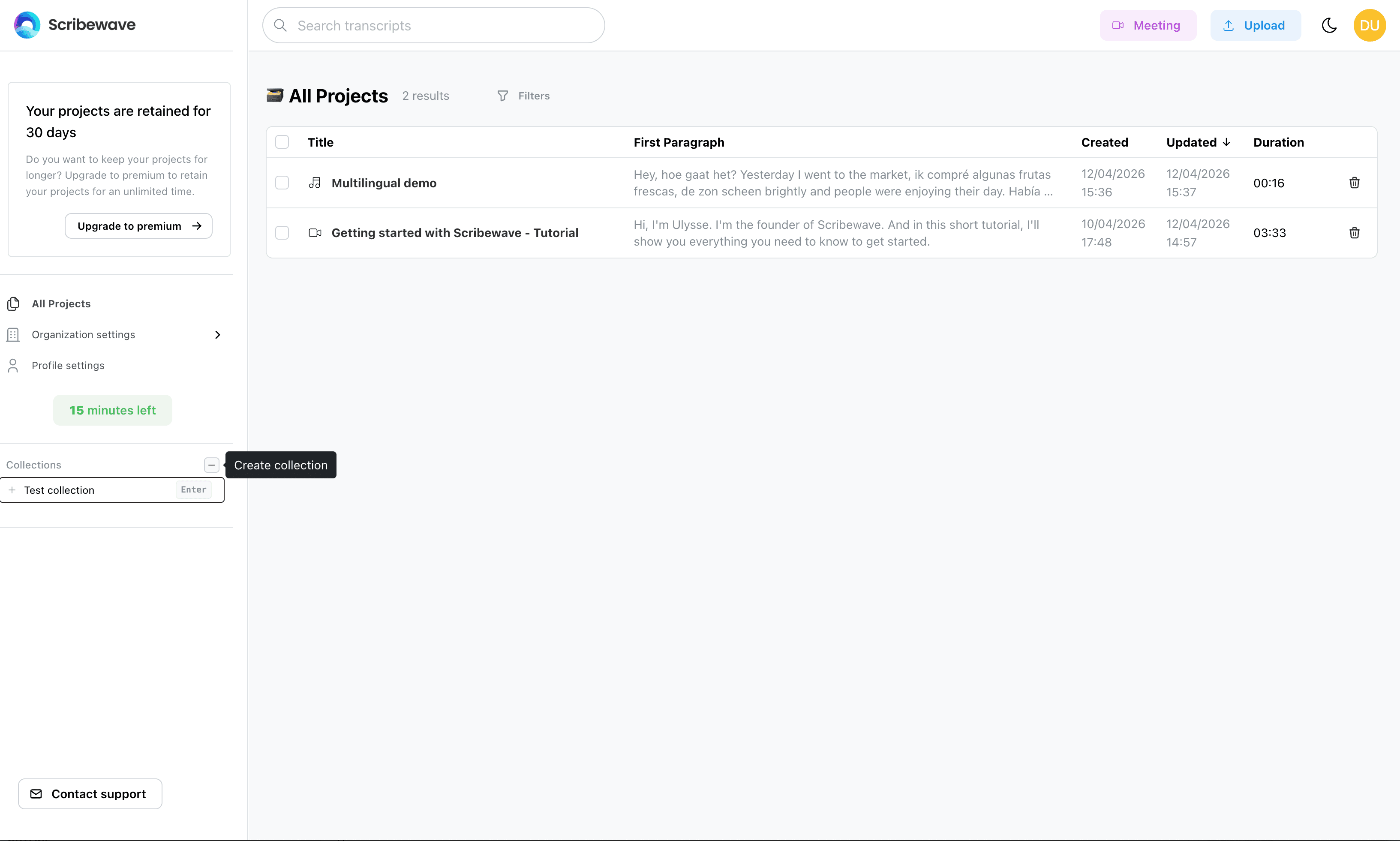
If you have a lot of files, you can organize them in Collections.
Creating and Managing Collections
To create a collection:
- Go to the left sidebar.
- Click Collection or click the + icon next to the Collections header.
To move projects into a collection:
- Select multiple projects from your dashboard.
- Click the Move button and choose your destination collection, or drag a project straight onto a collection in the sidebar.
Collections can be nested one level deep, given their own colour and emoji, and carry their own vocabulary, dictionary and meeting settings — see Collections.
They are also how you give colleagues access to your work: share a collection once and everyone on it can reach every project in it. See Sharing and Access.
Managing Projects
Sorting and Filtering
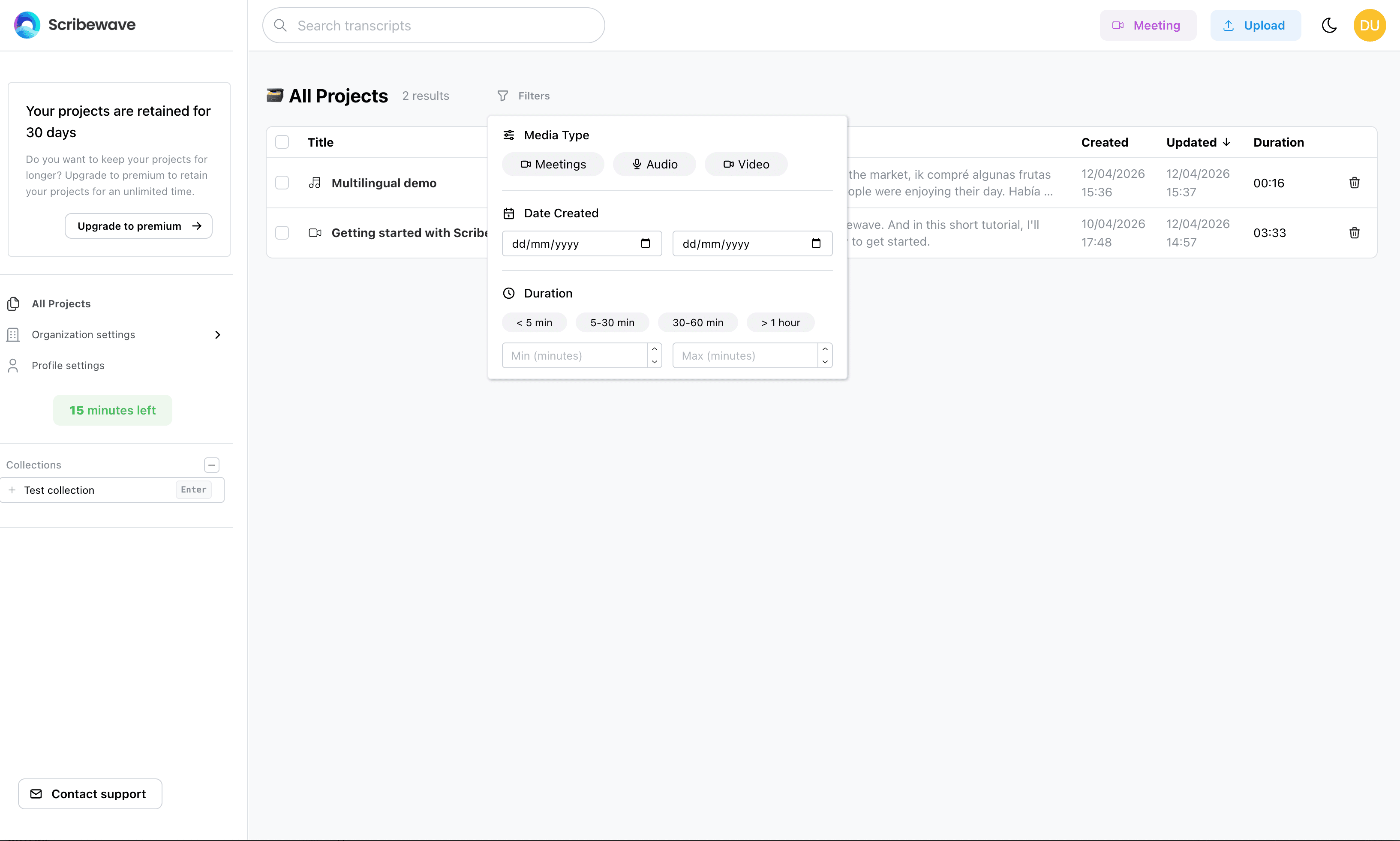
Inside the dashboard, you have several ways to view your projects:
- Rename your projects directly from the dashboard.
- Sort your projects based on different fields. By default, projects are sorted in descending order by the updated field. You can also order them by duration.
- Filter your projects to view only audio-only or video-only projects.
Bulk Actions
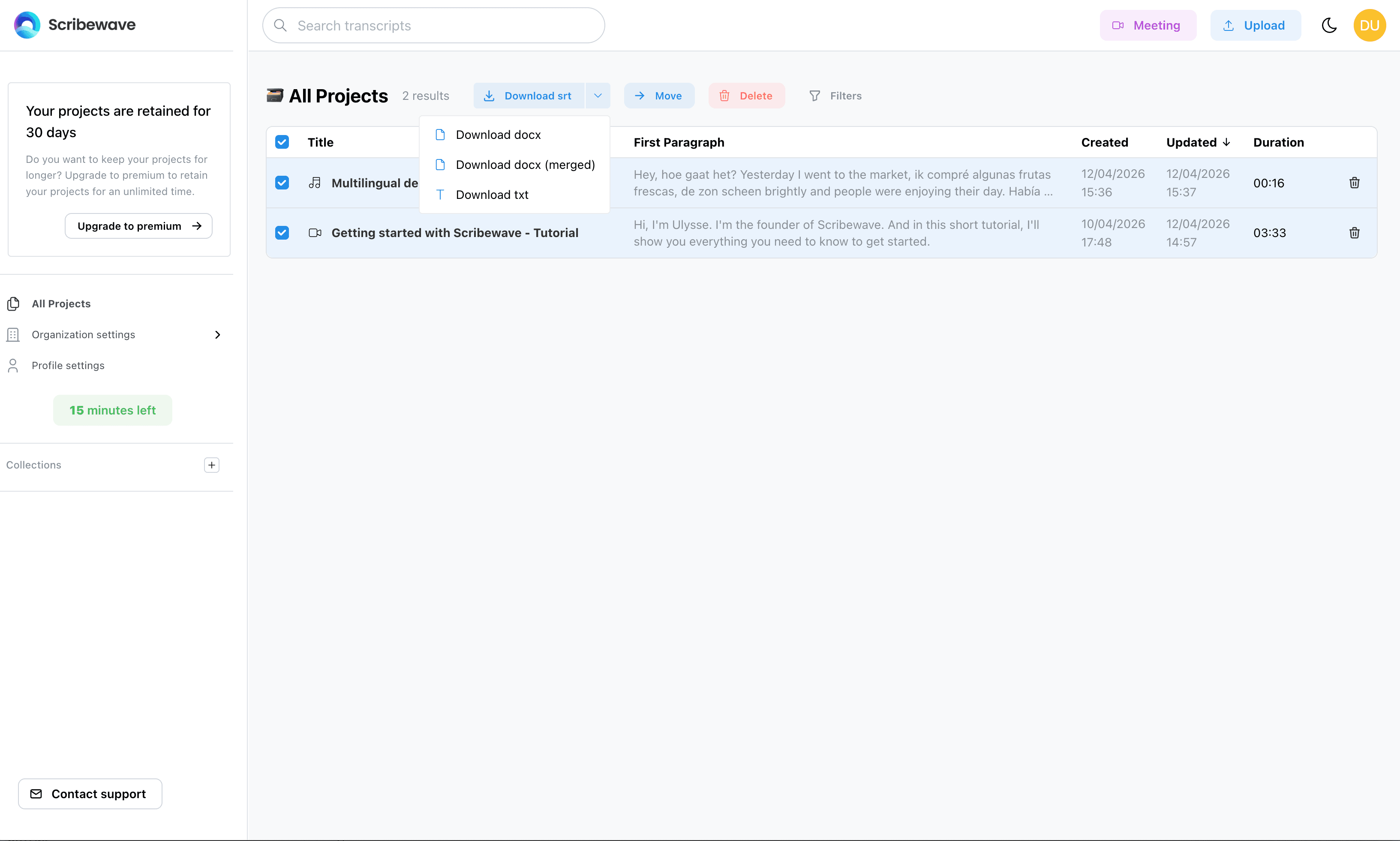
From the dashboard, you can select multiple projects to perform bulk actions:
- Download multiple transcripts at once.
- Remove multiple transcripts simultaneously.
- Move multiple projects to a different collection.
Advanced Search
The search functionality is highly advanced to help you find exactly what you need.
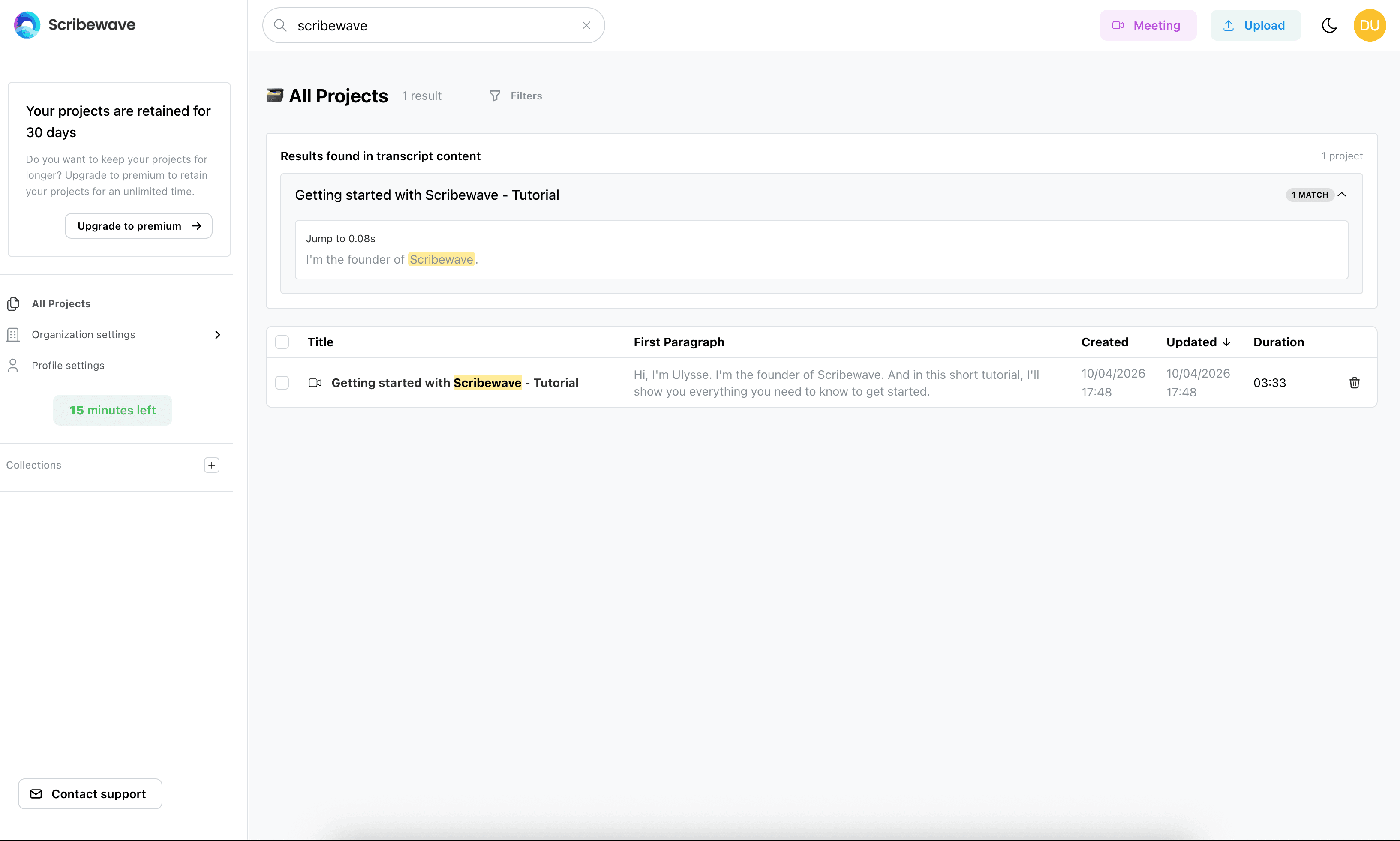
You can use the search bar to look for certain words. This will search through:
- Project titles
- Anywhere within the transcripts across all of your projects
The search will return the different sentences that match your query. You can then click on a sentence to go exactly to that moment in time within that specific project.
Opening a Project
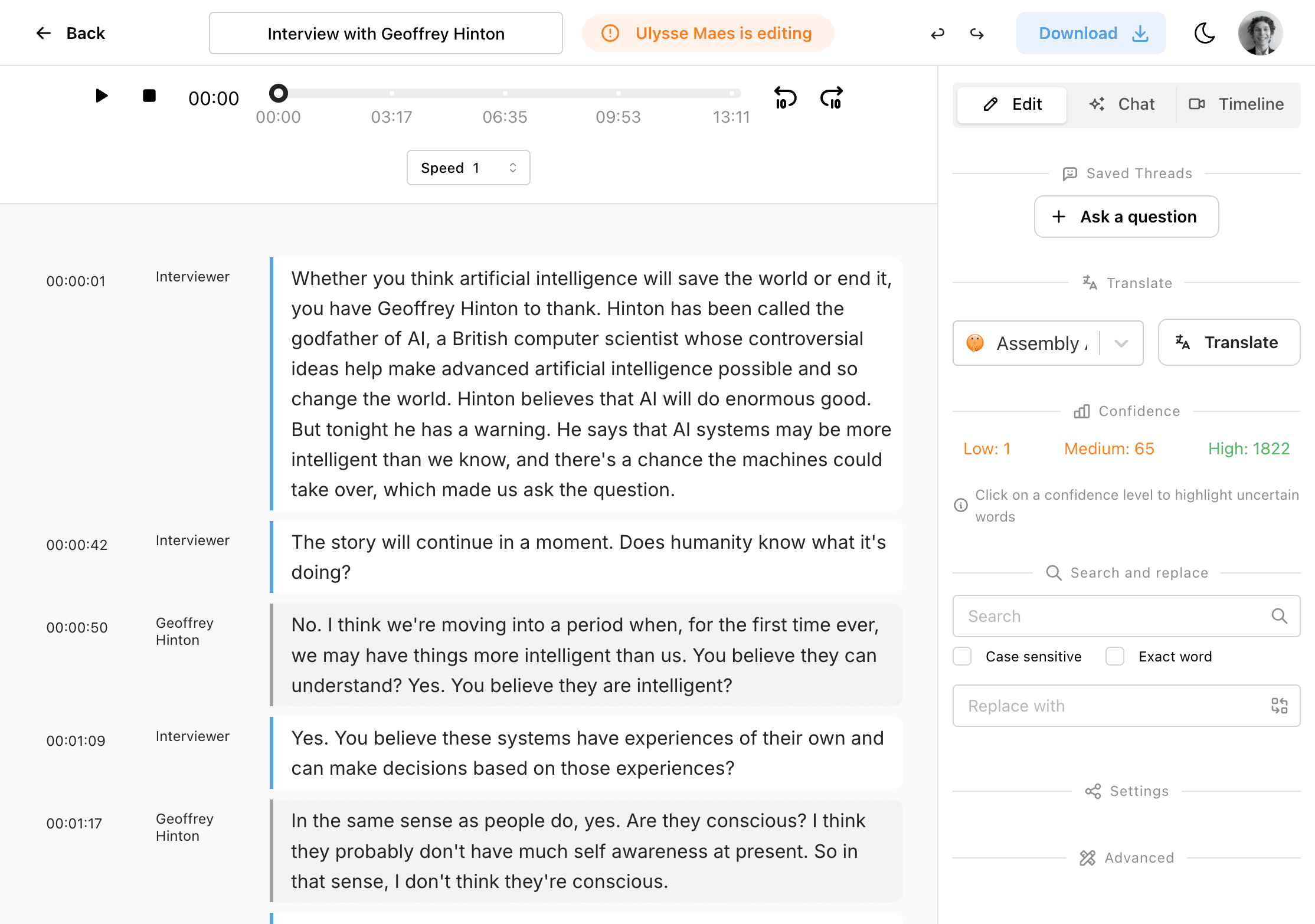
Select a project card or row to open it in the editor. Once you are done editing, you can use the editor's back button to return to your dashboard or collection.
Best practices
- Keep project names descriptive so search stays fast.
- Use collections for recurring clients, shows, or research tracks.