Upload and Meetings
Create new transcript projects from uploaded files or meeting capture.
Scribewave offers multiple ways to create a project, whether you are uploading pre-recorded files or capturing live meetings.
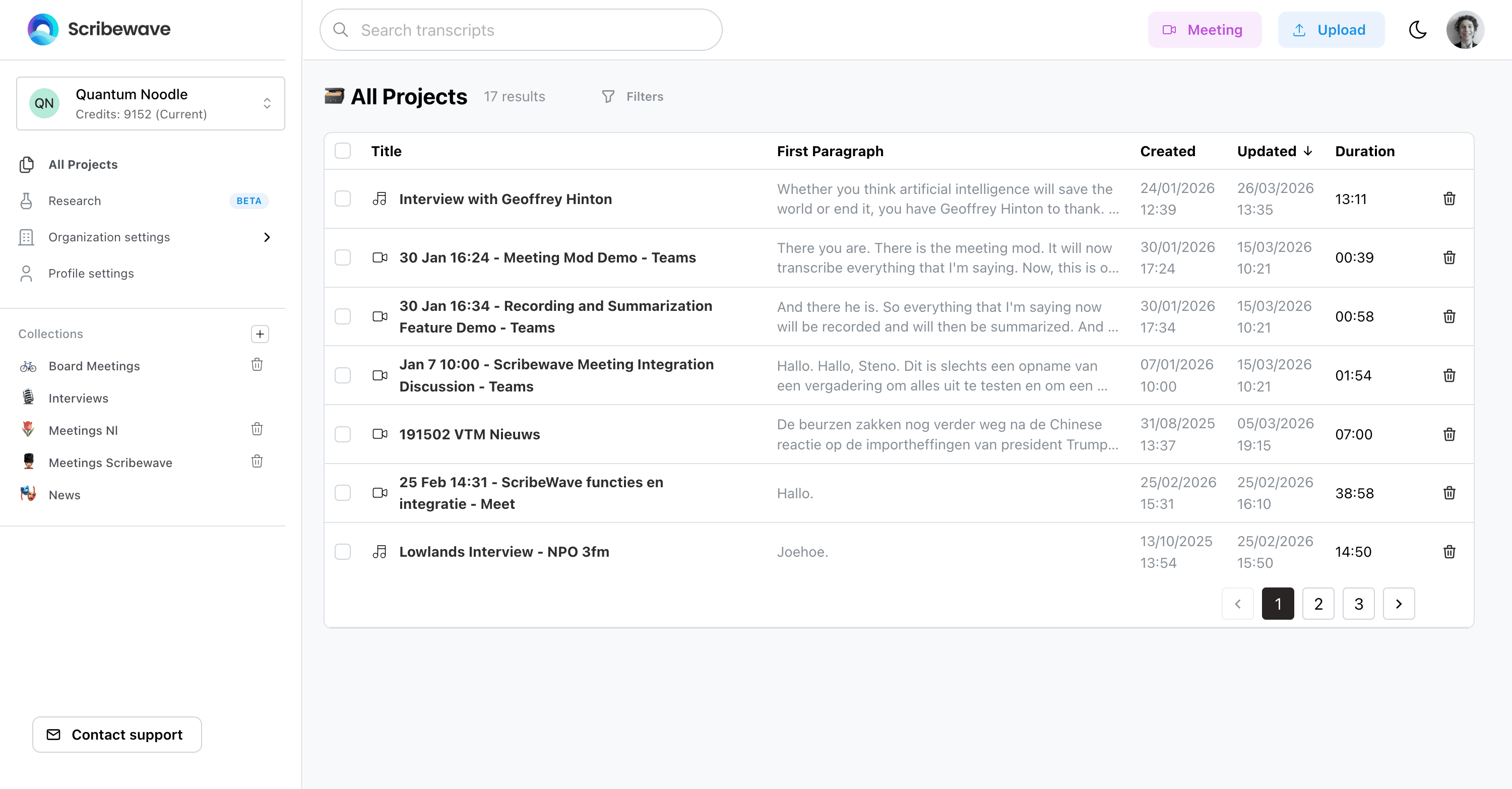
Uploading Files
The most straightforward way to create a project is by uploading your files. You can upload files in a few different ways:
- Drag and Drop: Simply drag your file directly into the Scribewave dashboard. The upload modal will automatically pop up.
- Upload Button: Click the Upload button in the dashboard and select your file, or drag it into the modal. You can also select multiple files at once.
Language Settings
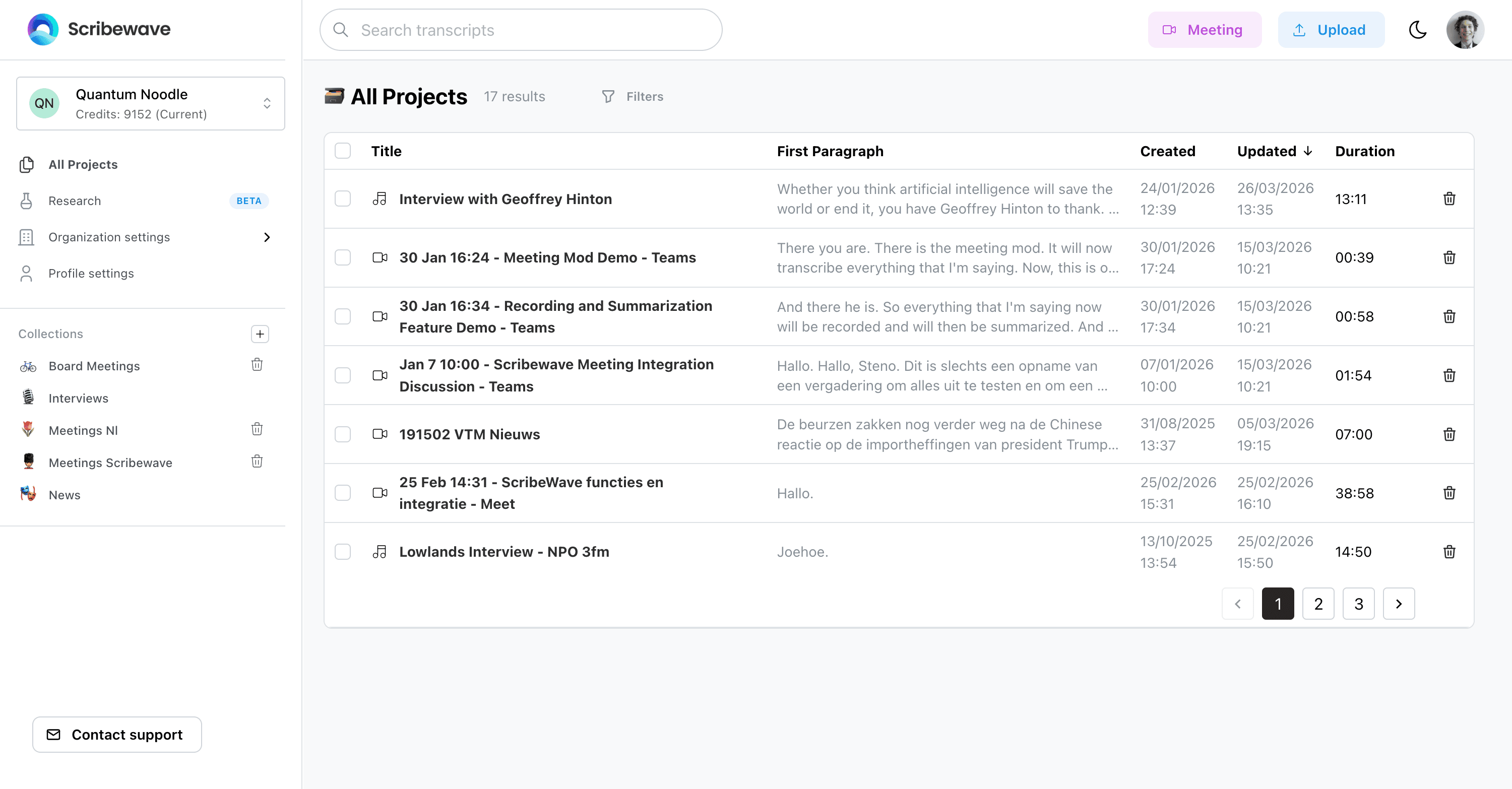
In the upload modal, you can select the language spoken in the audio:
- You can manually select a specific language.
- You can use Auto-detect if you are unsure.
- If multiple languages are spoken in the audio, it is highly recommended to select a Multilingual model to ensure accurate transcription across all languages.
Upload Settings
When uploading, you can fine-tune how your transcript is generated using the upload settings:
- Verbatim Option: By default, stop and filler words (like "um" or "uh") are removed to improve readability. If you switch the Verbatim option to True, all stop and filler words will be transcribed exactly as spoken.
- Custom Vocabulary and Dictionaries: You can add custom vocabulary to help Scribewave recognize specific terms or names. If you reuse the same set of words frequently, you can create a Dictionary. You can then select this dictionary during upload to add all its words to your custom vocabulary at once.
Uploading via WhatsApp
A handy feature for using Scribewave on the go from your mobile phone is uploading via WhatsApp.
- Go to your Profile Settings and configure your phone number.
- You will receive a message from the Scribewave WhatsApp bot.
- From then on, you can simply forward or send audio messages directly to the WhatsApp bot. The audio will automatically be transcribed and added as a new project in Scribewave.
Meeting Capture
If you use Scribewave for meetings, you can invite a bot to automatically transcribe, record, and summarize your meeting.
You can add the bot to your meeting in two ways:
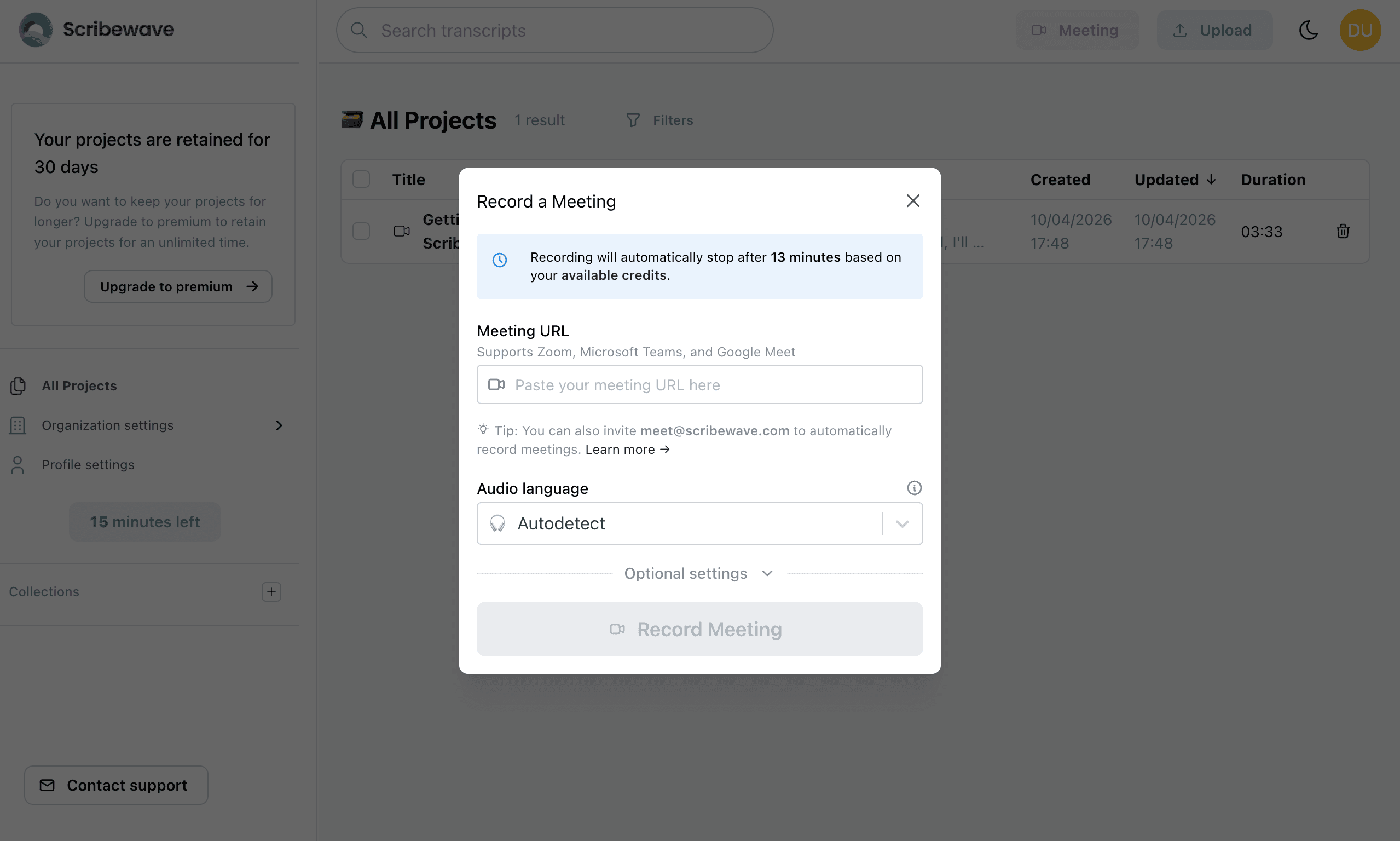
- Record Meeting Button: In the dashboard, click the Meeting (or Record Meeting) button. Simply paste the link to your meeting, and the bot will join immediately.
- Calendar Invite: If your meeting is planned for the future, you can schedule the bot to join automatically. Just invite
meet@scribewave.comto your calendar event. (Make sure the email you send the invite from matches your Scribewave account email.)
Processing and Availability
Once a file is uploaded or a meeting is captured, your project will begin processing. During this phase:
- Background noise will be removed to clean up the audio.
- The transcript will be generated.
When processing is complete, your project will appear in the library. You can then click the project to open it in the editor, where you can edit or export the transcript.