

AI Assistant and Analyze
Use Scribewave AI tools for guided transcript edits and structured transcript analysis.
Scribewave includes two AI-powered workflows in the editor:
- AI Assistant for guided transcript edits, rewrites, and quick refinement.
- Analyze for coding, categorization, and insight extraction across transcript content.
Use the assistant when you want to improve the transcript itself, and switch to Analyze when you want to interpret or organize the content.
Use AI Assistant
The AI Assistant is available in the document sidebar and supports iterative edits through saved threads. A good rule of thumb: if you find yourself doing the same manual operation a few times, it's usually faster to ask the AI Assistant to do it for you!
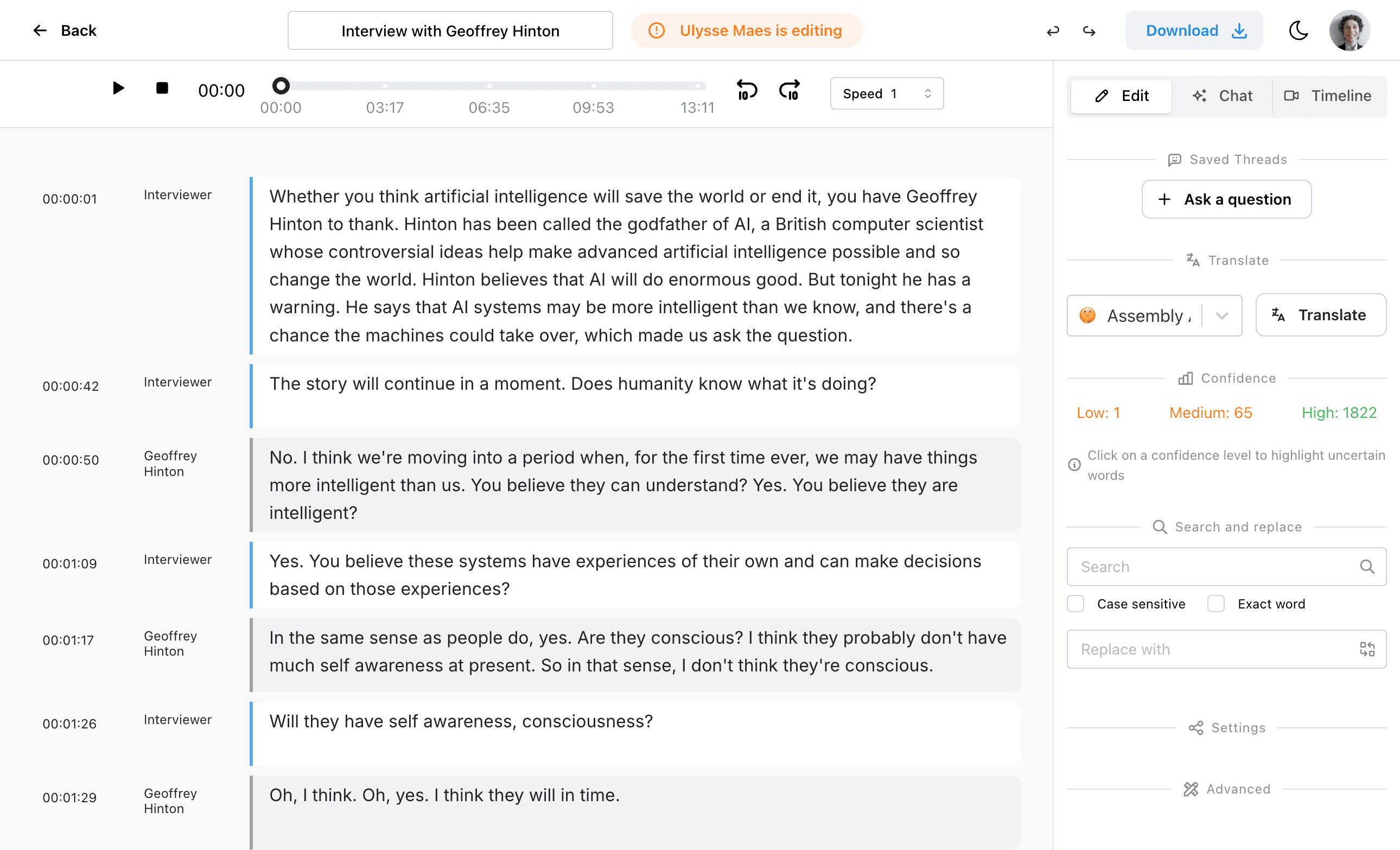
Step 1: Open AI Assistant
You can access the AI features in two main ways:
- Edit panel (Right Sidebar): In the document tab, open the AI Assistant section in the right sidebar. You can just start typing to ask it to edit or analyze your transcript.
- Chat tab: Switch to the dedicated Chat tab to go in-depth, ask questions about your transcript, and generate summaries that you can save and download as Word documents.
Step 2: Send an instruction
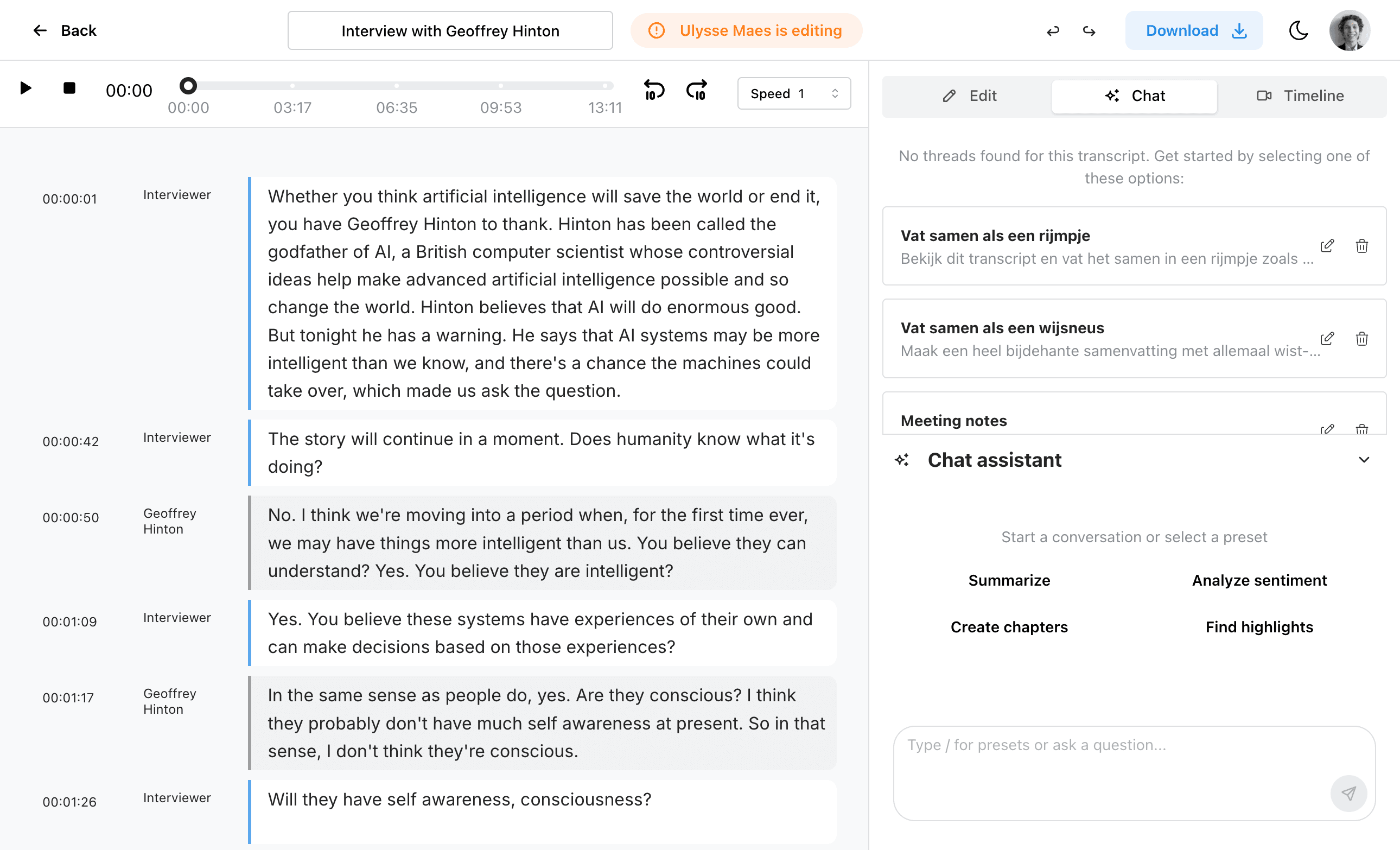
You can ask the AI editor to perform almost any text operation. For example, you can ask it to:
- Label speakers (it can automatically derive names from the transcript context).
- Highlight certain types of words or sections.
- Fix mistranscribed names, improve spelling, and correct grammar.
Using Presets for faster workflows:
- Type a forward slash (
/) to pop up a list of built-in presets (like removing filler words or cleaning up a video). - If you have specific prompts you use frequently, you can save them for later by clicking Save new prompt.
Step 3: Review the result
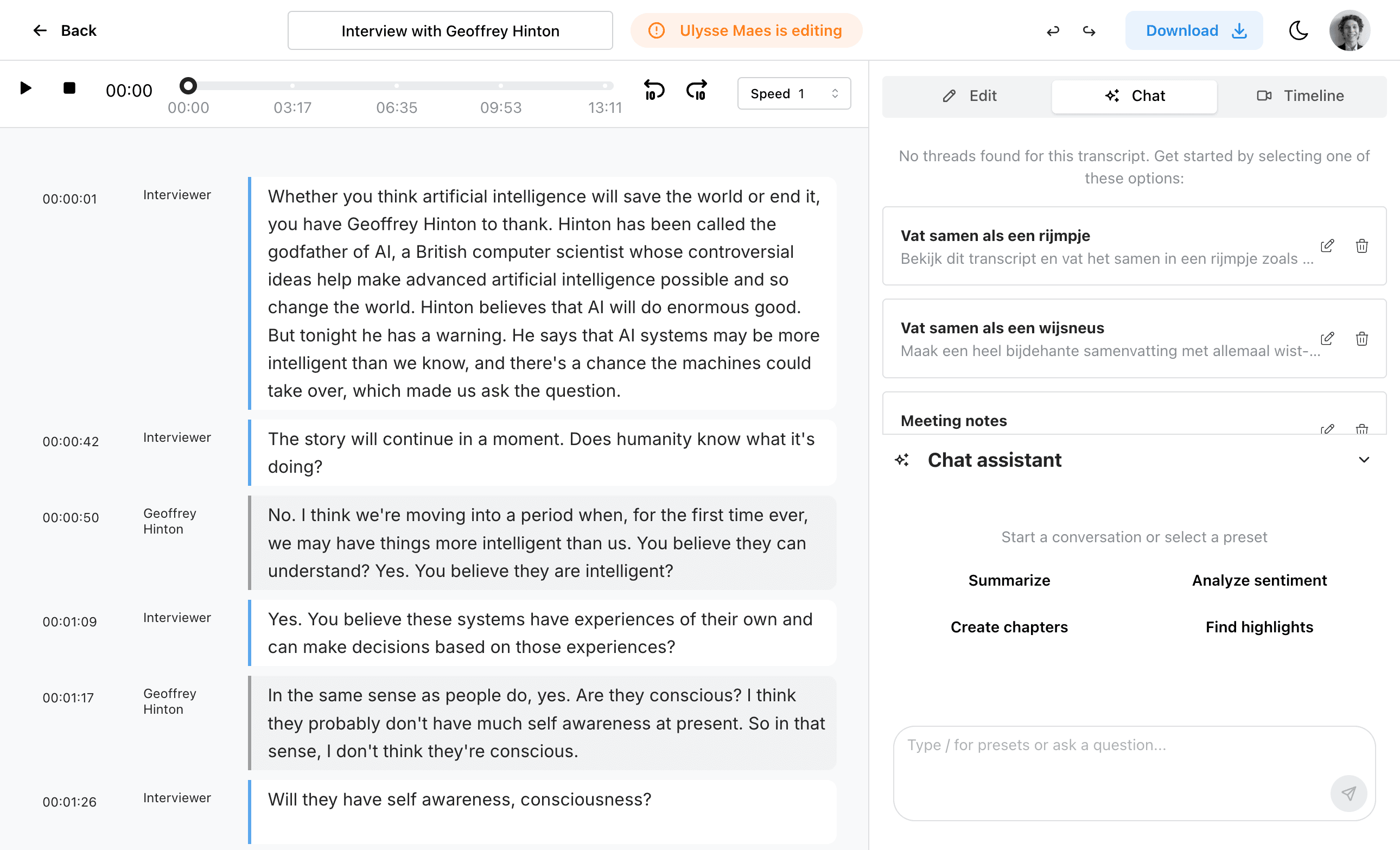
The AI will analyze the entire transcript and propose the necessary updates. Inspect the proposed output and choose to accept or reject each edit individually. This ensures you keep full editorial control.
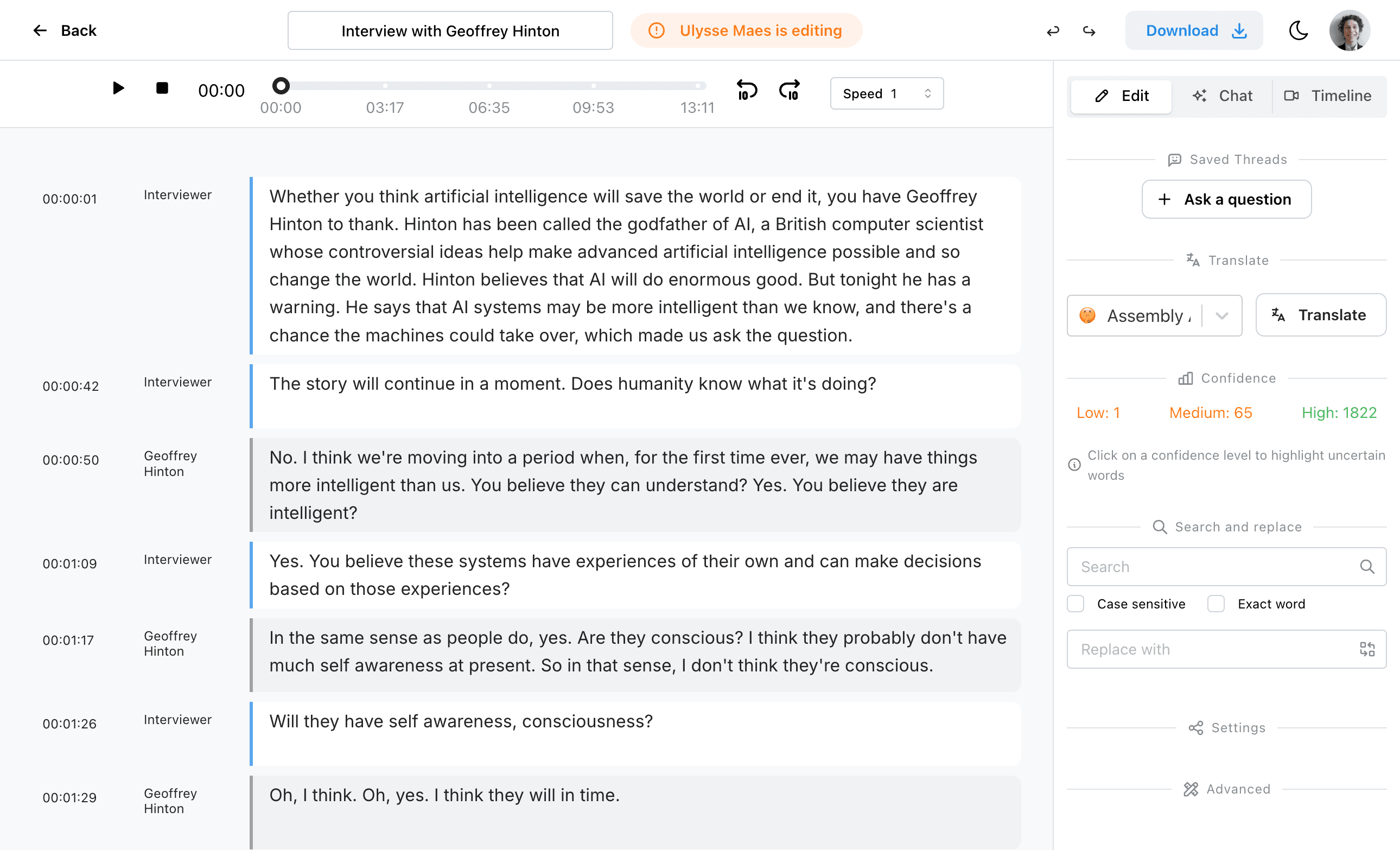
Step 4: Re-open prior work from Saved Threads
Use Saved Threads to continue previous AI conversations without starting over.
Use Analyze
The Analyze tab is designed for coding and insight extraction workflows.
Step 1: Switch to Analyze
Open the Analyze mode from the editor tab controls.
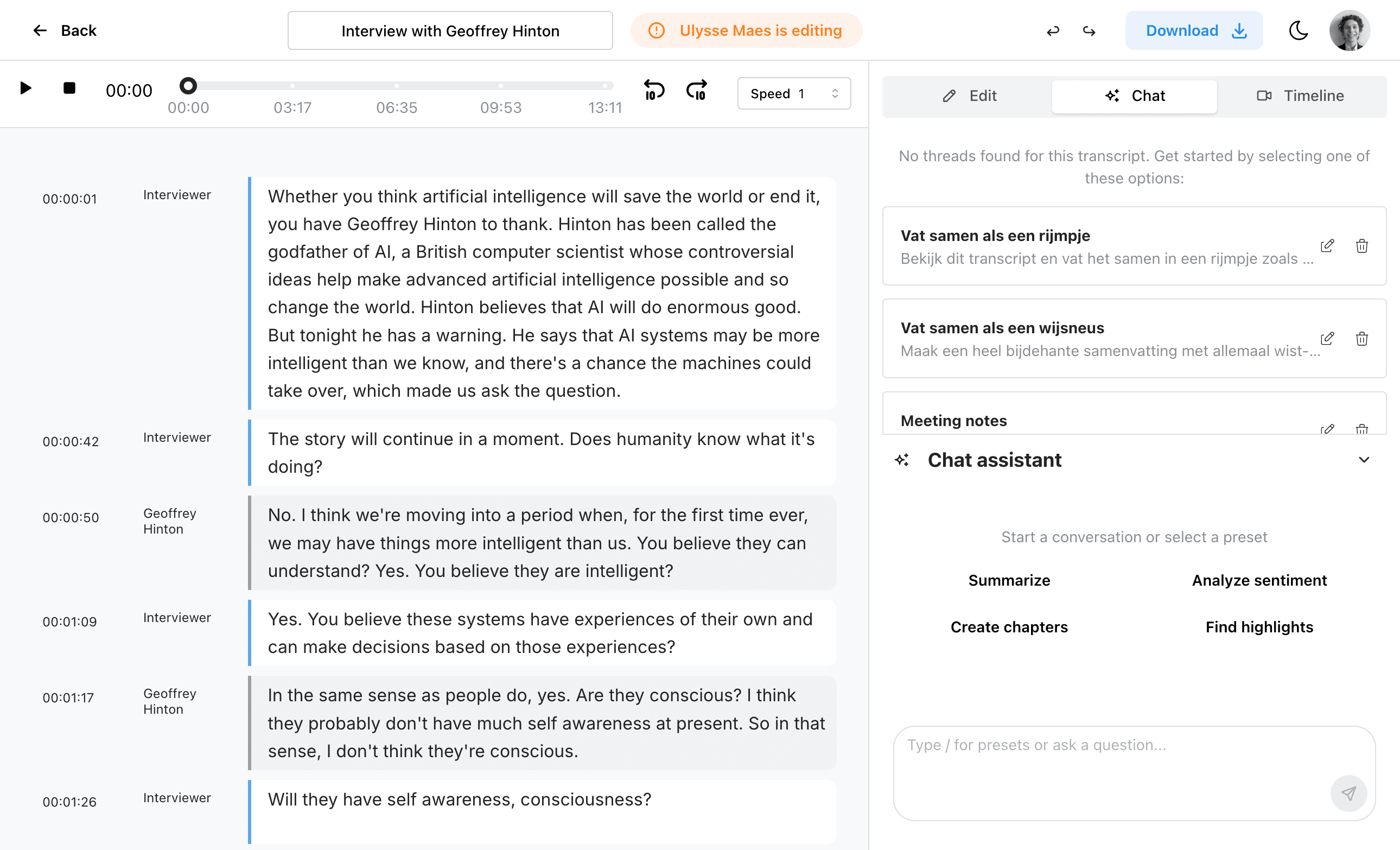
Step 2: Configure your analysis approach
Use the analysis panel to set up the coding or interpretation pass you want to run.
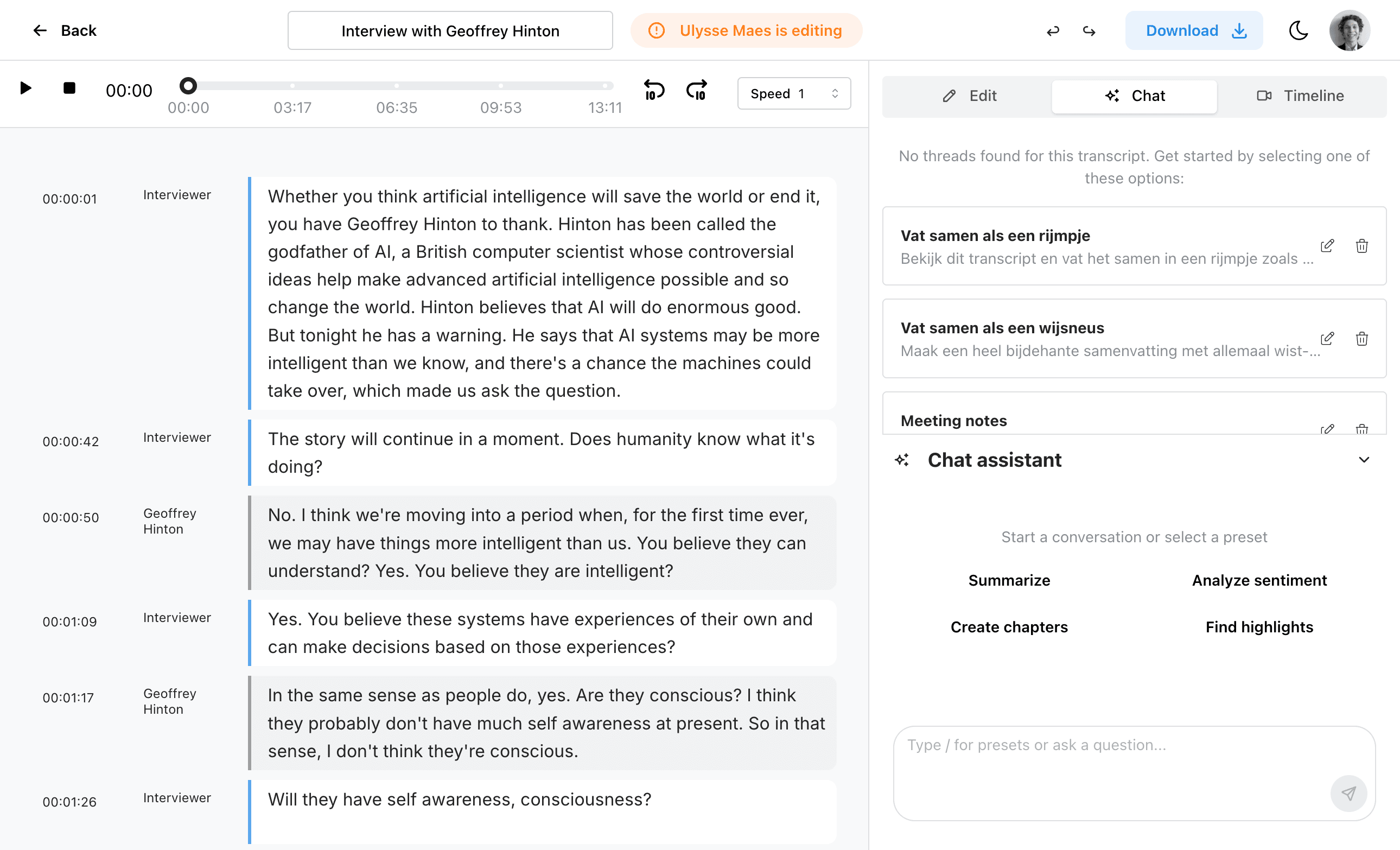
Step 3: Review highlighted or categorized output
Inspect coded results and iterate until your framework matches the research goal.
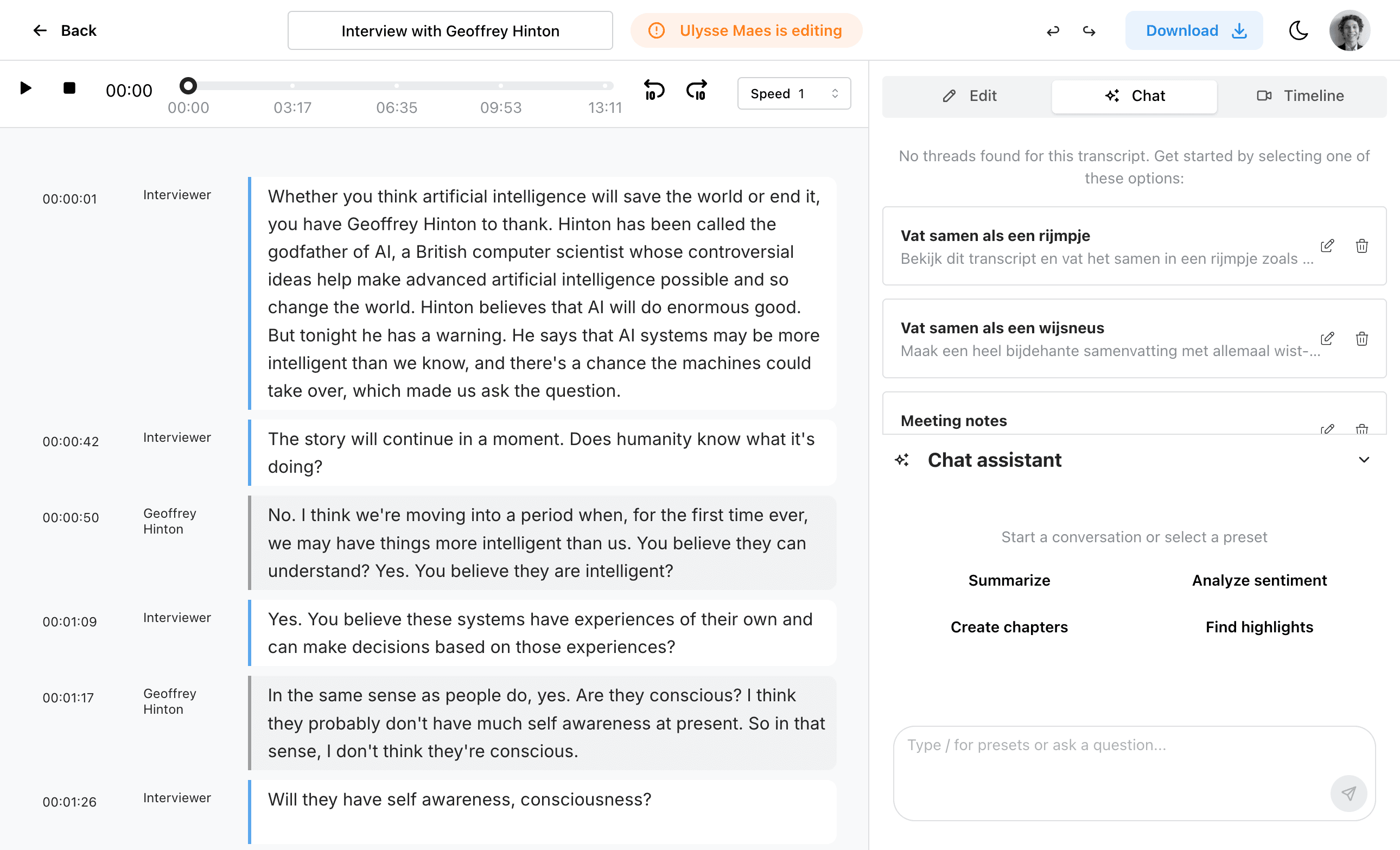
When to use each tool
- Use AI Assistant for rewrite requests, cleanup, summaries, or editorial improvements.
- Use Analyze for research workflows, thematic coding, or first-pass categorization.
Tips for better results
- Ask for one change objective per prompt.
- Keep prompts concrete and audience-focused.
- Use manual edits after AI output for final polish.
- Start with AI Assistant for transcript cleanup before running a more structured Analyze pass.