Translate and Quality Checks
Translate transcripts and run final quality checks before sharing or export.
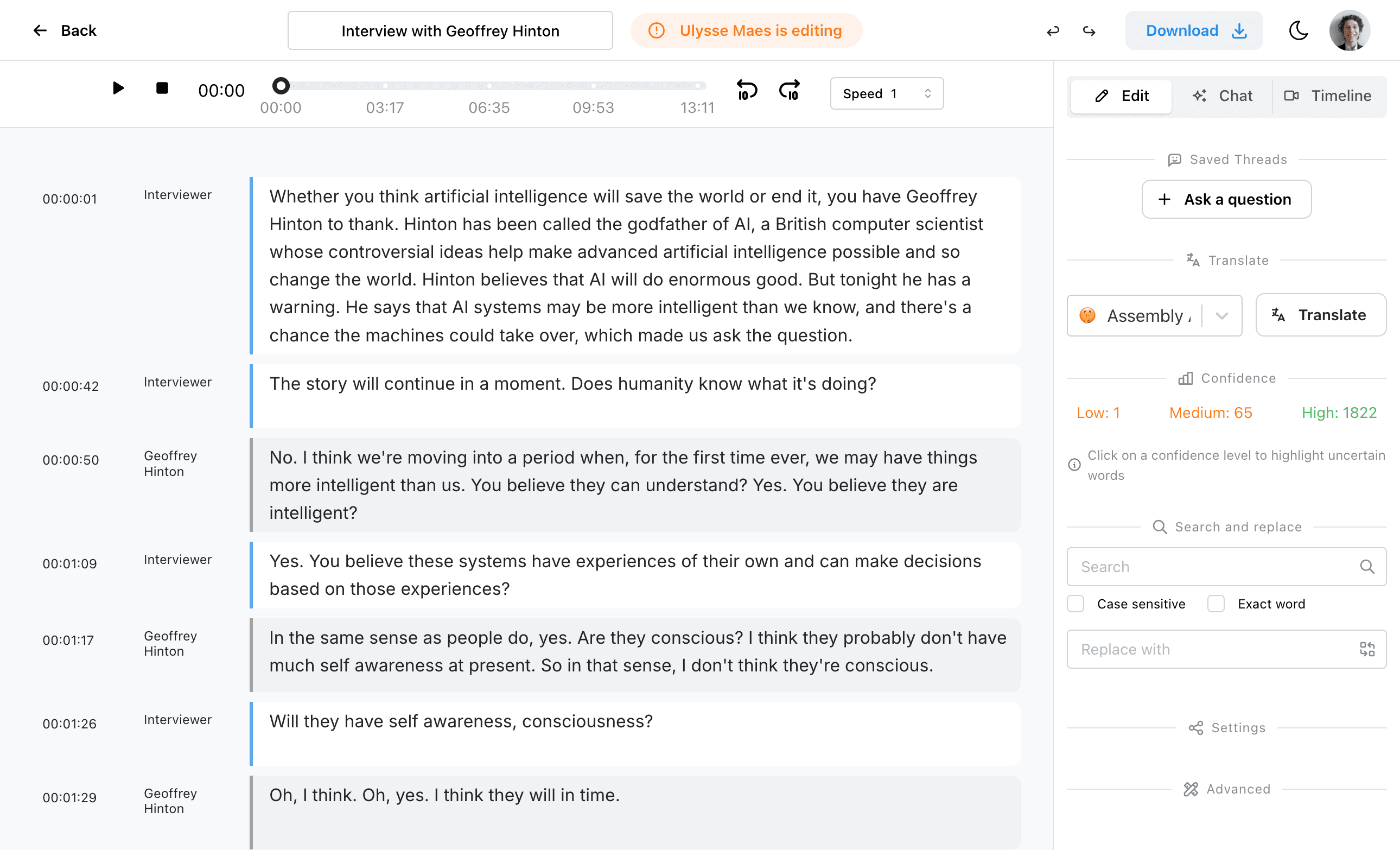
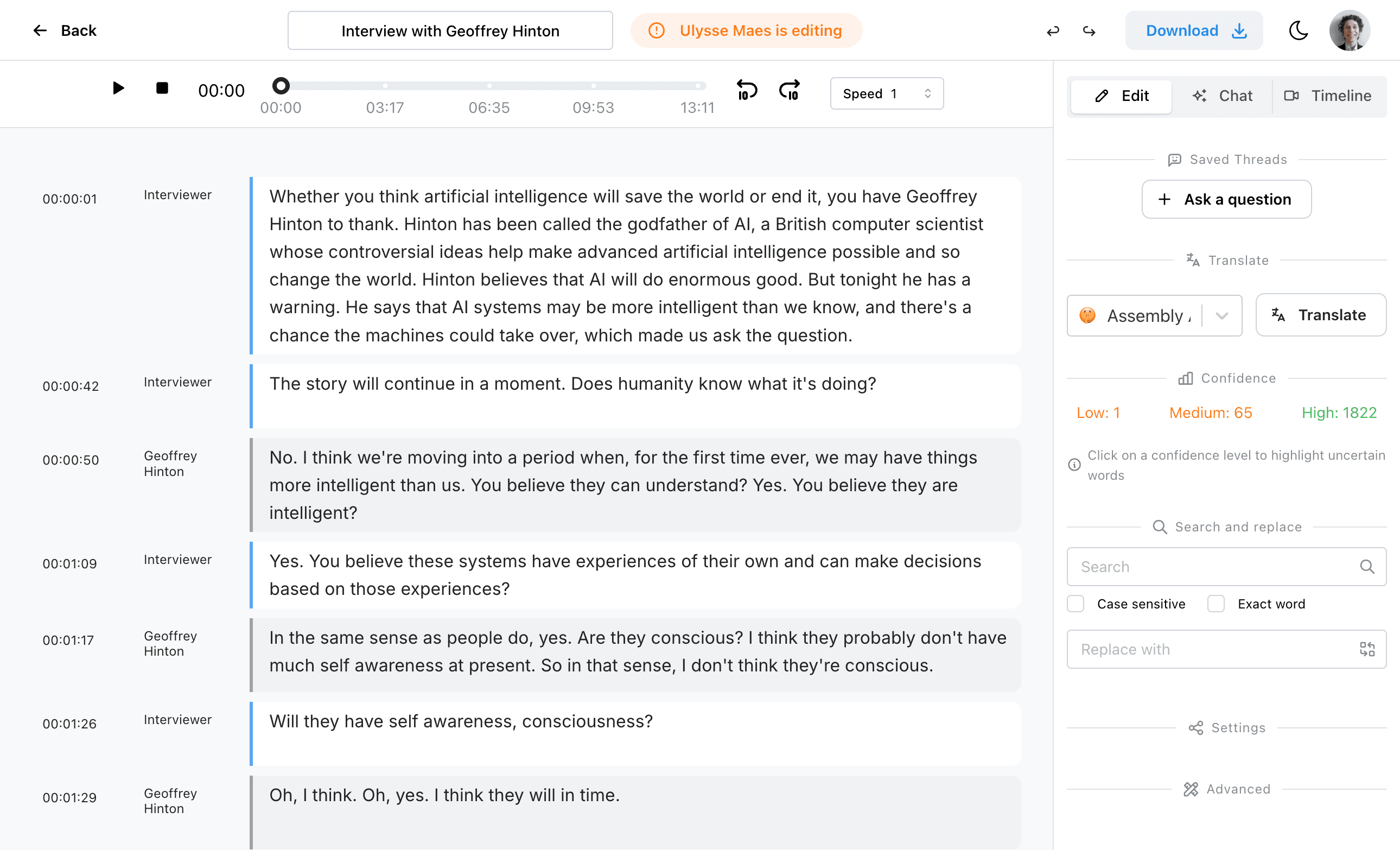
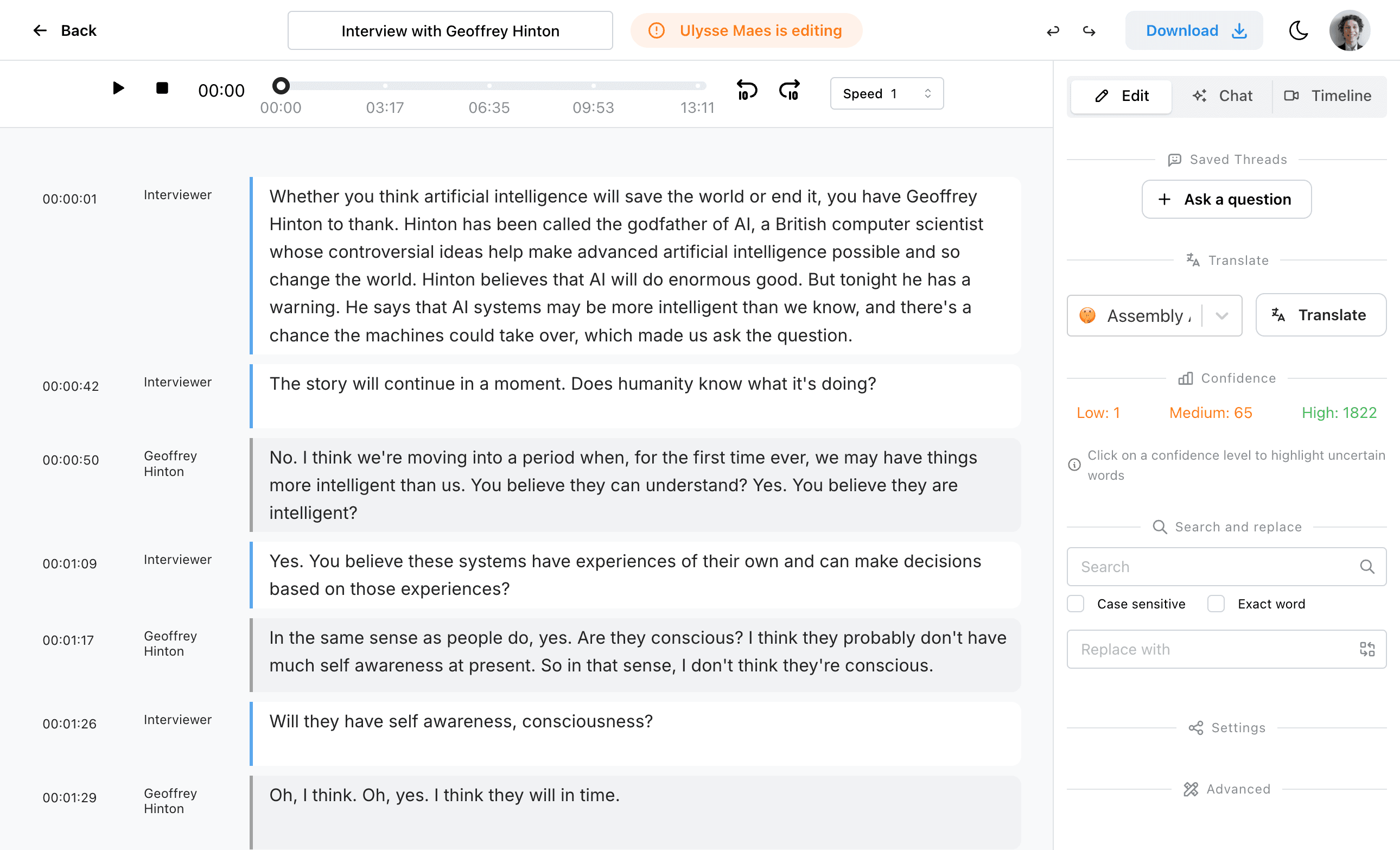
In the right sidebar of the editor, you will find several options to enhance and finalize your project, including Translation, Search and Replace, and Sharing settings.
Translate Your Transcript
Creating a translation is simple. In the sidebar, open the Translate section, select your target language, and click Translate. A word-for-word exact translation will be generated in the chosen language.
A powerful feature of this translation is that it remains synchronized in time with the original transcript.
Managing Multiple Translations
You can create additional translations or easily switch back to the original language at any time.
When you open a project from your dashboard, the most recently edited translation will automatically load. For instance, if you finish editing a French translation of an English project, the French version will open the next time you access the project. If you switch back to English, edit it, and reopen the project later, the English version will load.
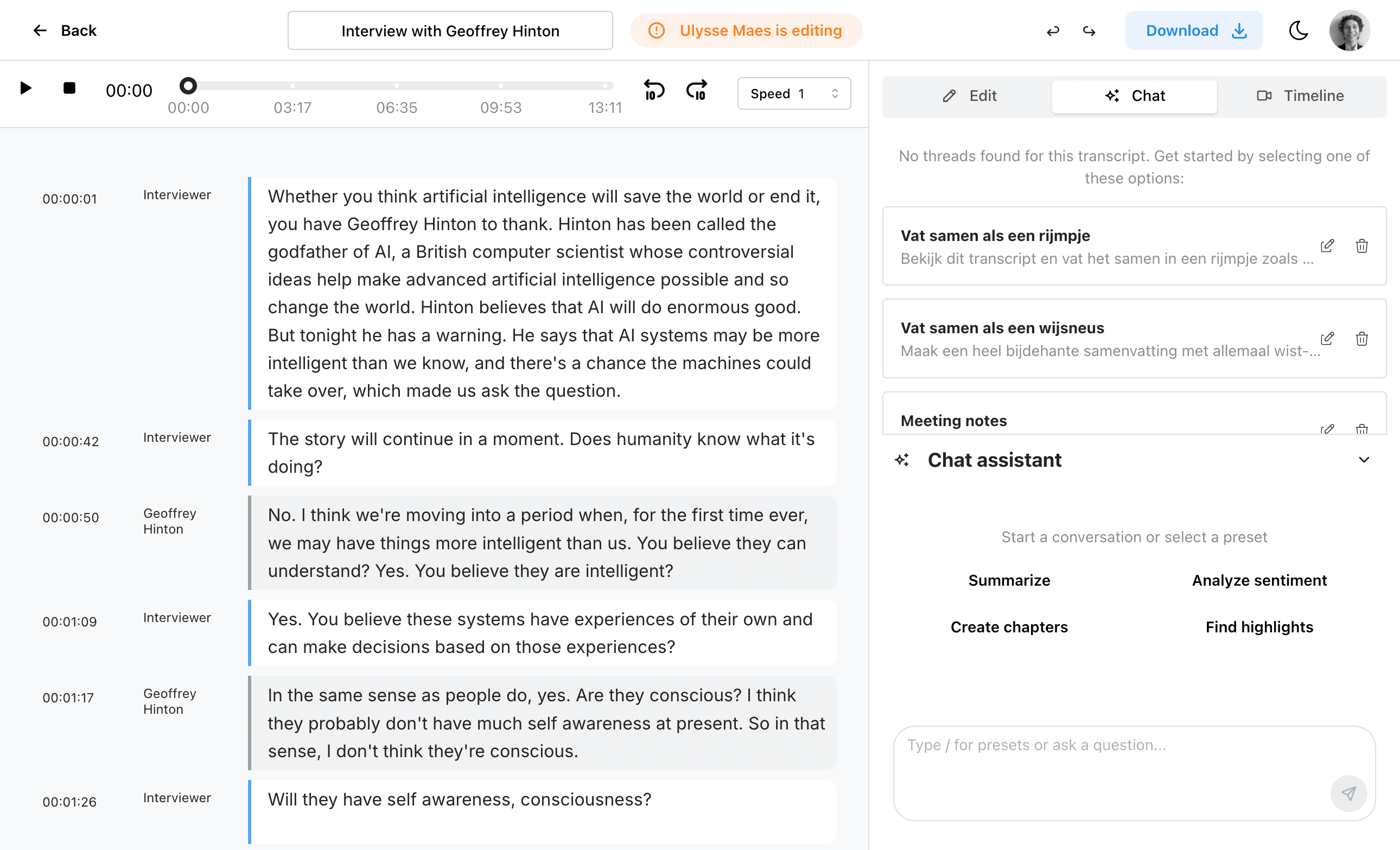
You can download any translation in the same formats as you would the original transcript.
Search and Replace
The Search and replace function allows you to efficiently look for certain terms mentioned in a long transcript. You can use it to bulk-correct misspelled words or miswritten names.
Confidence Highlights
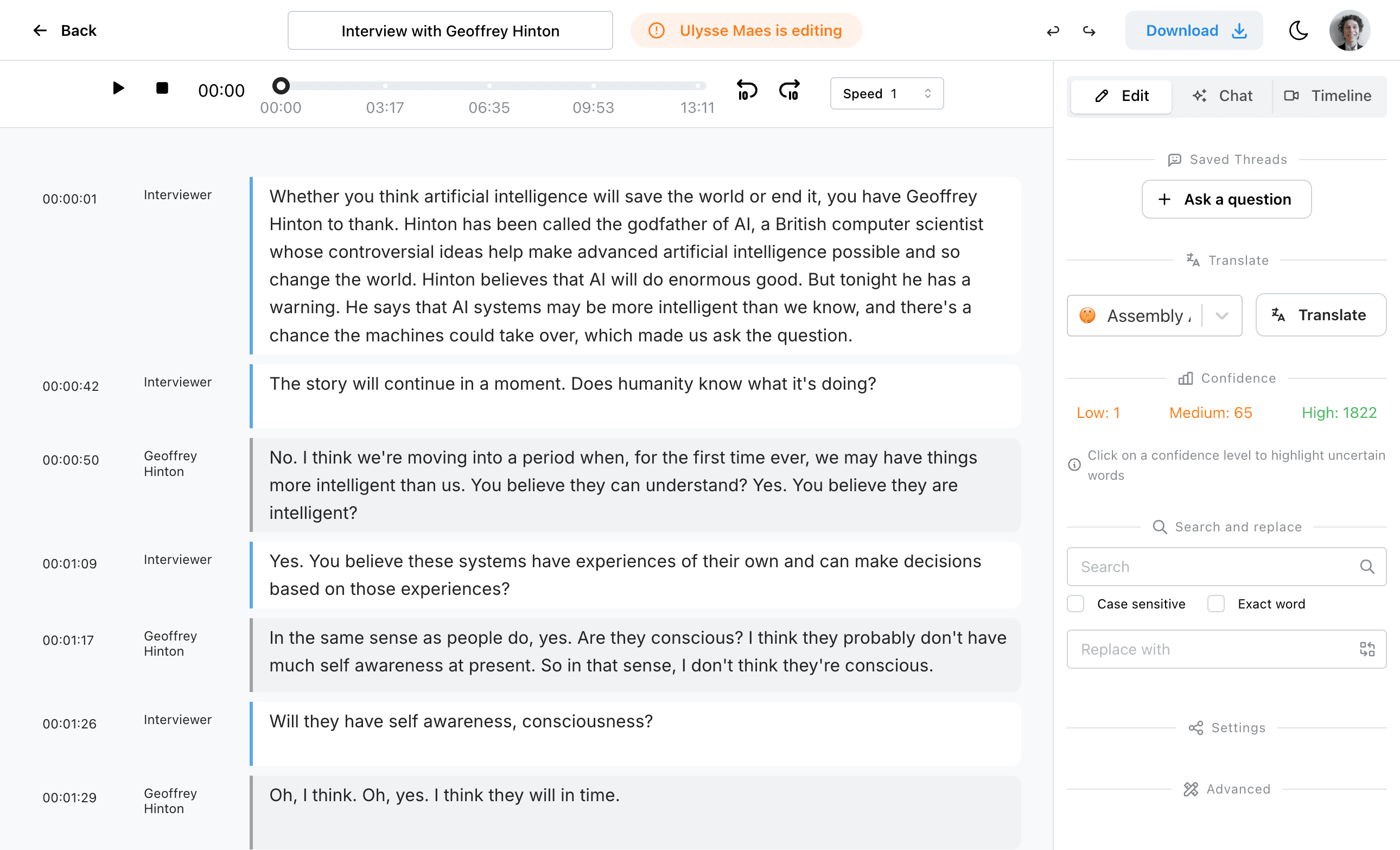
For transcripts generated with certain models, you will have access to confidence highlights. You can click on these confidence intervals (for example, clicking on the medium or low confidence filter) to highlight all the words that the AI transcribed with lower confidence.
These highlights point out the most important parts of the transcript to check and review.
Share Your Project
If you are working in an organization and want to collaborate, you can easily share your project with other members by using the sharing settings in the sidebar.